Account Settings
View personal information and change your login password.
In Account Center, click the Account Settings tab to manage your personal information and login password.
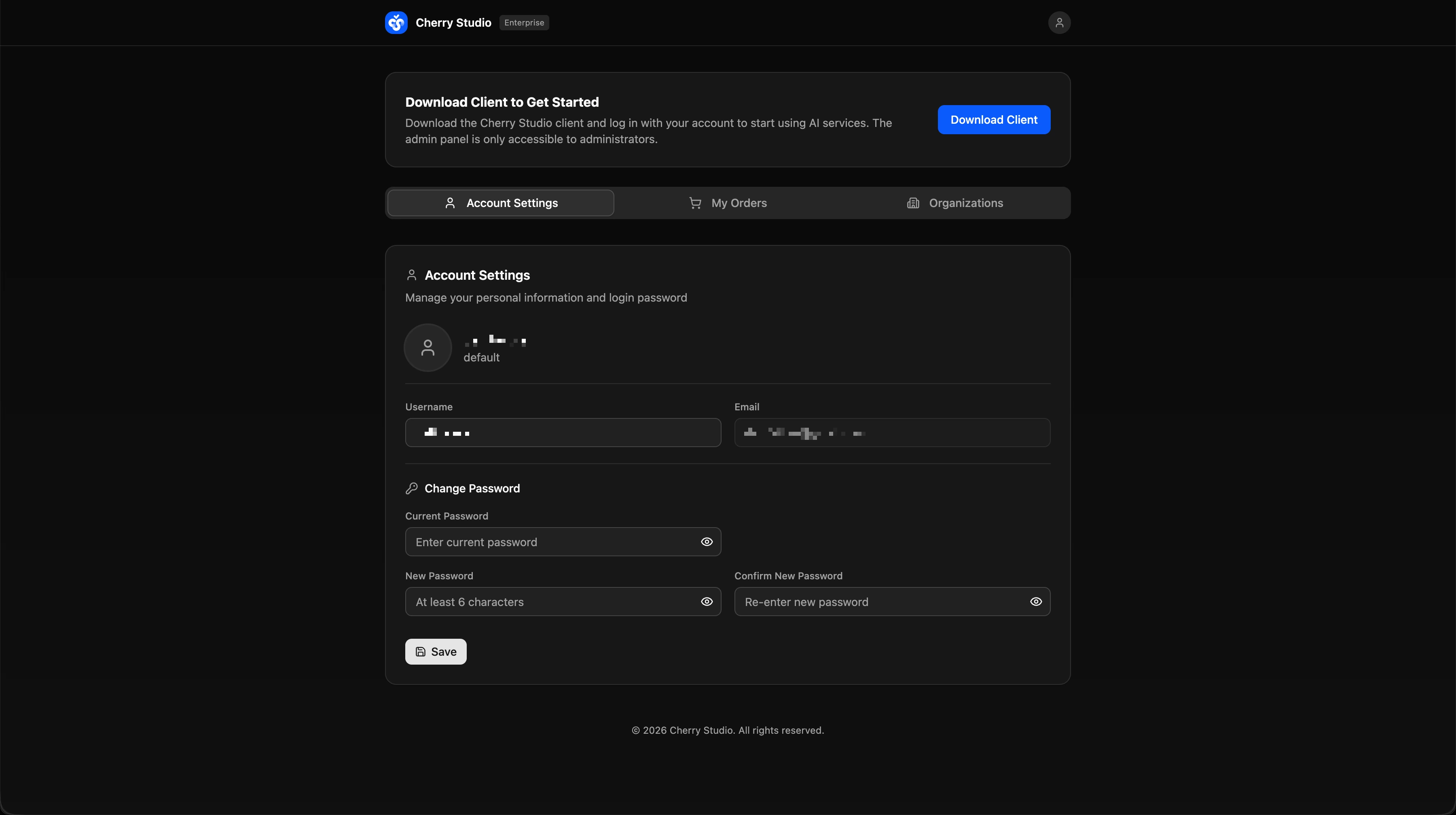
Personal Information
Basic account info is shown read-only:
| Field | Description |
|---|---|
| Username | The username you registered with. |
| The email address linked to your account. |
To change your username or email, contact your organization administrator or submit a support ticket.
Change Password
Follow these steps to change your login password:
- Enter your old password in the Current Password field to verify your identity.
- Set a new password in the New Password field (at least 6 characters).
- Re-enter the same new password in the Confirm New Password field.
- Click Save.
After a successful change, use the new password the next time you sign in.
For account security, change your password periodically and avoid reusing the same password across other platforms.