Organizations
View organizations you have joined or created, join a new organization, or create one.
In Account Center, click the Organizations tab to view all organizations you have joined or created, switch between them, or join a new one.
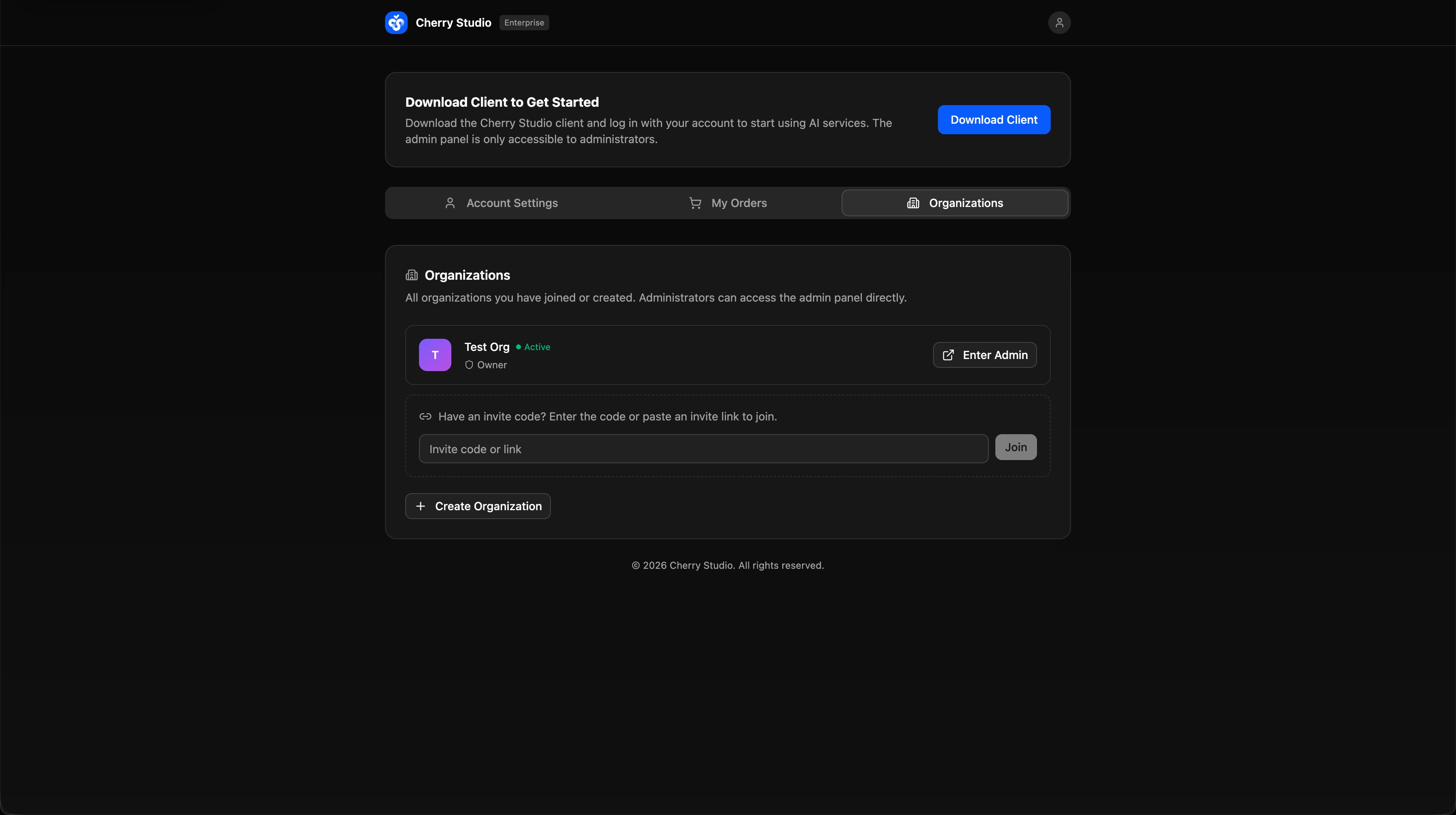
Organization List
All organizations linked to the current account are listed as cards. Each card shows:
- Organization name and status (e.g., "Active")
- Role (Owner / Administrator / Member)
- Enter Admin button — jump directly to that organization's admin console
Only owners and administrators can enter the admin console. Regular members may see the "Enter Admin" button as unavailable.
Join with an Enterprise Invite Code
If you've received an invite link or enterprise invite code from an organization administrator:
- Paste the enterprise invite code or invite link into the input box.
- Click Join.
- Once joined, the new organization appears in the list above.
For details on how administrators invite members, see Member Invitation.
Create a New Organization
Click + Create Organization at the bottom of the list to create a new organization. You'll become the owner and need to complete enterprise verification and the payment activation flow.
For the full creation flow (Register → Create Organization → Select Plan → Enterprise Verification → Payment), see Quickstart.