Create and Configure Agents
Create agents through 7 configuration tabs covering quick setup, model selection, permission control, skill binding, and MCP tool integration.
Navigation: Admin Console → Agents → Click the New Agent button in the top-right corner
Quick Setup
The simplest creation flow — just fill in the avatar, name, and primary model.
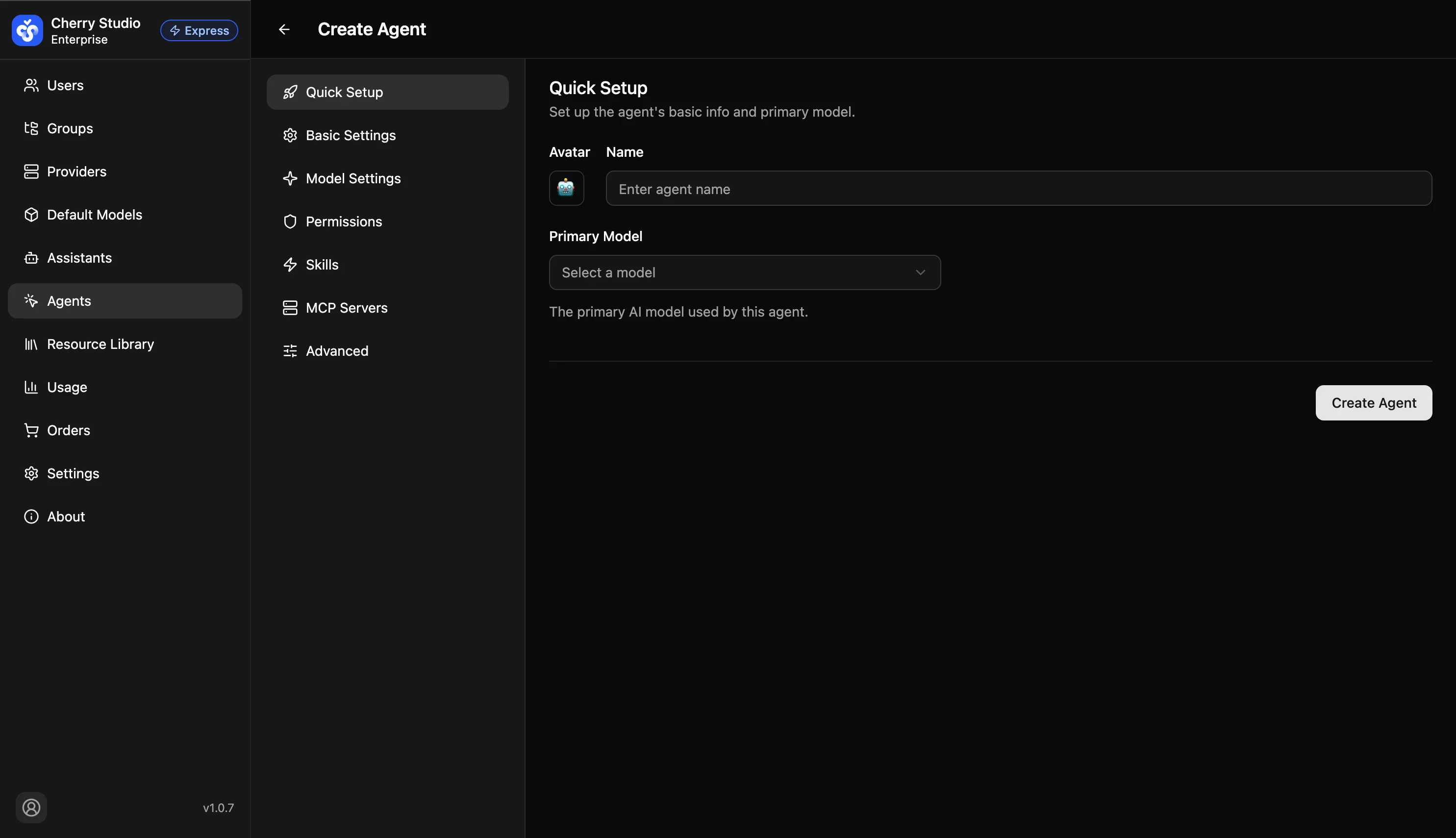
| Parameter | Description |
|---|---|
| Avatar | An emoji identifier for the agent. Click to change. |
| Name * | The unique name of the agent. |
| Primary Model * | The main AI model for the agent, selected from configured provider models. |
Basic Settings
Configure the agent's description and system instructions (System Prompt).
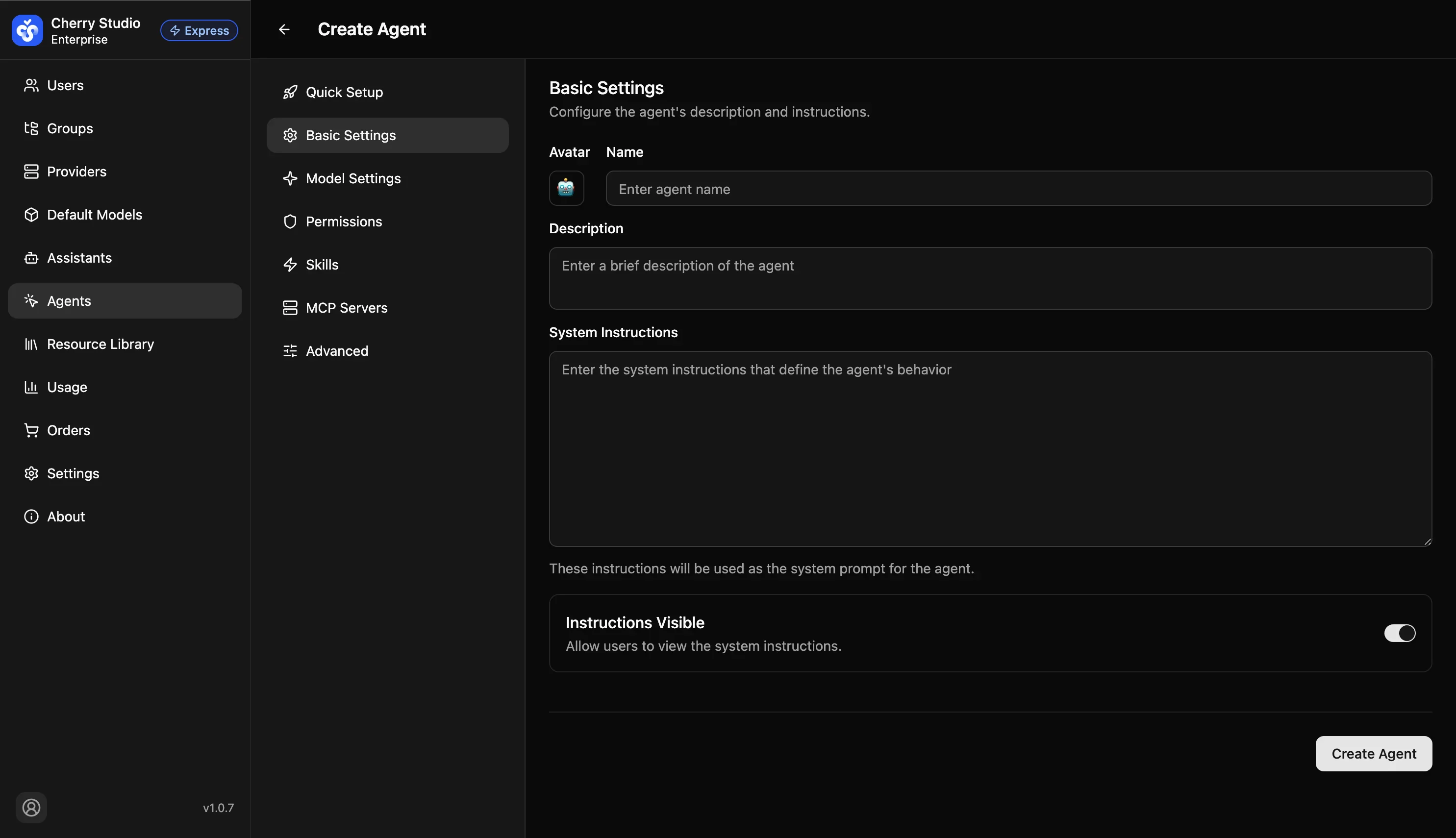
| Parameter | Description |
|---|---|
| Avatar | Same as Quick Setup. |
| Name * | Same as Quick Setup. |
| Description | A brief description of the agent's role and purpose. |
| System Instructions | Defines the agent's behavior rules and role, injected as the system prompt in every conversation. |
| Instructions Visible | Toggle control. When enabled, users can view the system instructions. Default: enabled. |
Model Settings
Configure the AI models used at different task stages. The three-model architecture allows an optimal balance between performance and cost.
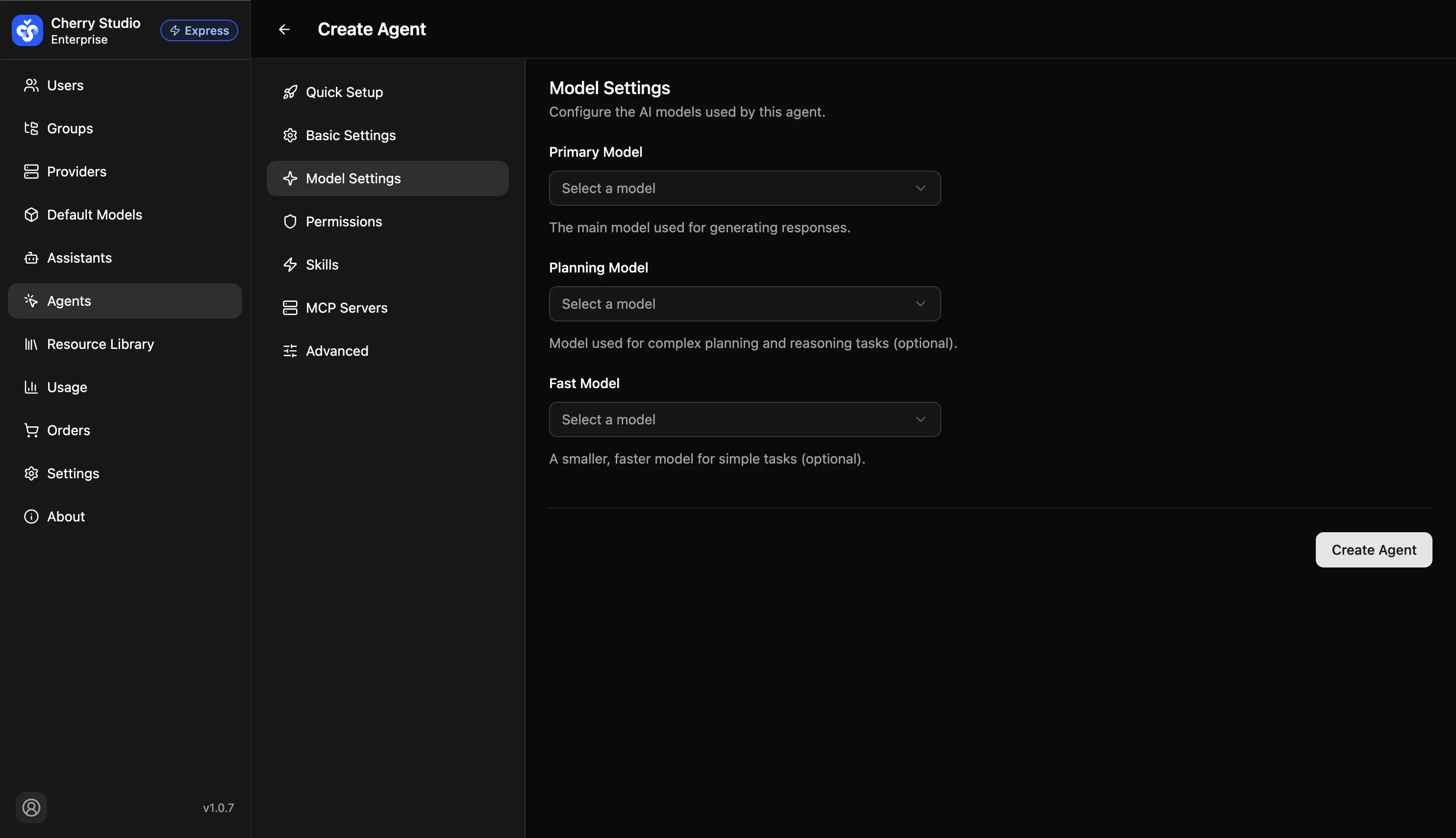
| Parameter | Required | Description |
|---|---|---|
| Primary Model | Yes | The main model for generating responses. Recommended: the most capable model (e.g., DeepSeek-V4, Qwen3-Coder-Plus). |
| Planning Model | No | Model for complex planning and reasoning tasks. Falls back to the primary model if empty. |
| Fast Model | No | A small, fast model for simple tasks. Falls back to the primary model if empty. Ideal for low-latency, cost-efficient models. |
Model selection tips: Choose DeepSeek-V4 or Qwen3-Coder-Plus tier for the primary model; planning model can match the primary or use a strong reasoning model like GLM-5.2; fast model works well with lightweight models such as Qwen3.5-Flash or DeepSeek-V4-Flash to reduce costs.
Permission Settings
Control agent runtime permissions to comply with enterprise security policies.
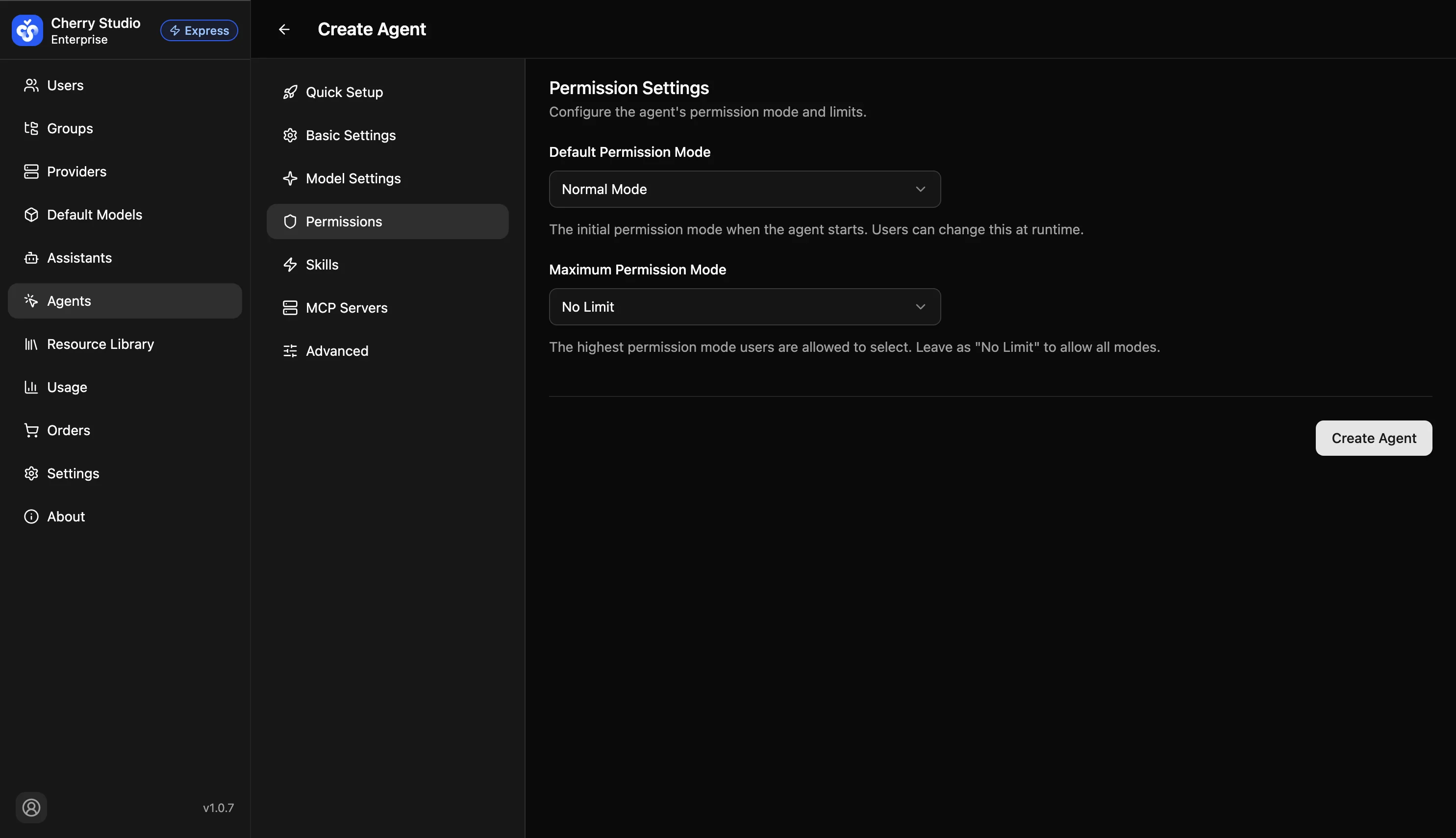
| Parameter | Description |
|---|---|
| Default Permission Mode | The initial permission mode when the agent starts. Users can switch at runtime (up to the maximum). Options: Normal, Plan, Accept Edits, Bypass Permissions. |
| Maximum Permission Mode | The highest permission mode users can select. Set to "No Limit" to allow all modes. Configure according to your security policy. |
Security note: "Bypass Permissions" mode allows the agent to perform all operations including file writes and command execution. Only grant this to trusted senior developers.
Skills
Select skills available to the agent. Skills come from the Resource Library's "Agent Skills" module — add skills there first before binding them here.
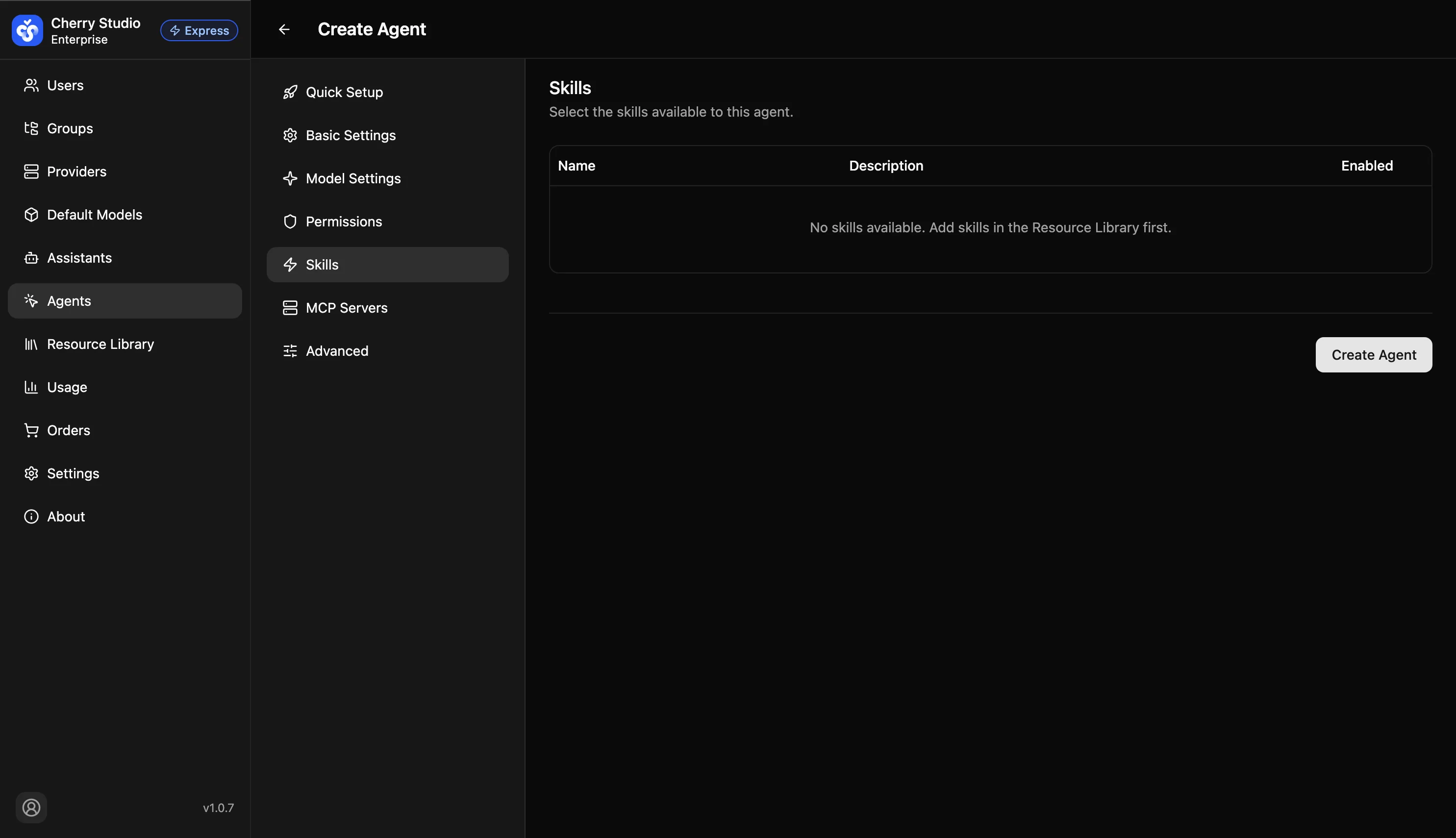
Each skill is controlled by an enable/disable toggle. If the list is empty, go to Resource Library → Agent Skills to add skills first.
MCP Servers
Select MCP servers the agent can call. MCP servers provide external tool and data source integration.
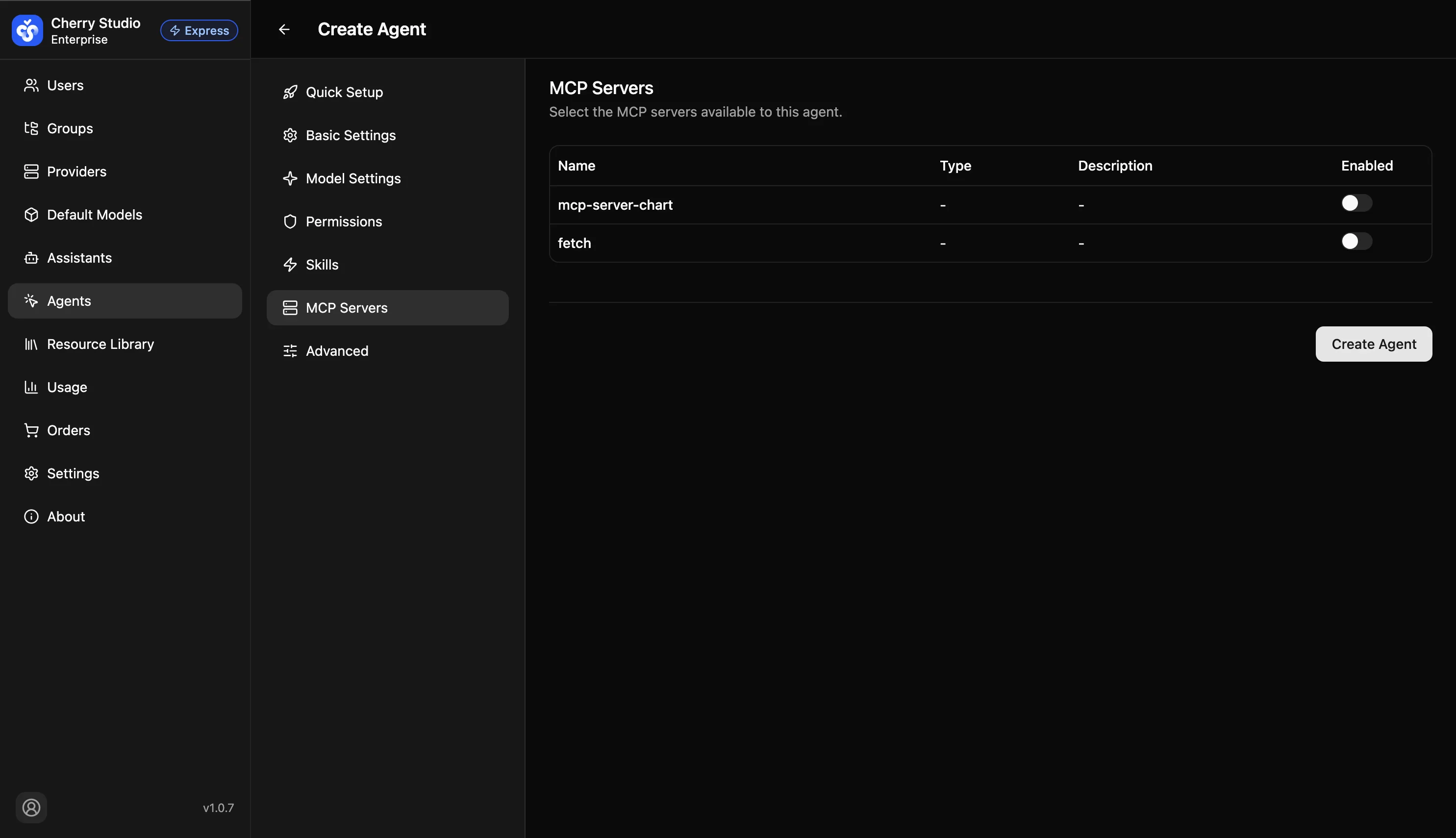
The list shows all configured MCP servers, each controlled by an enable/disable toggle.
Advanced Settings
Configure the agent's runtime behavior parameters.
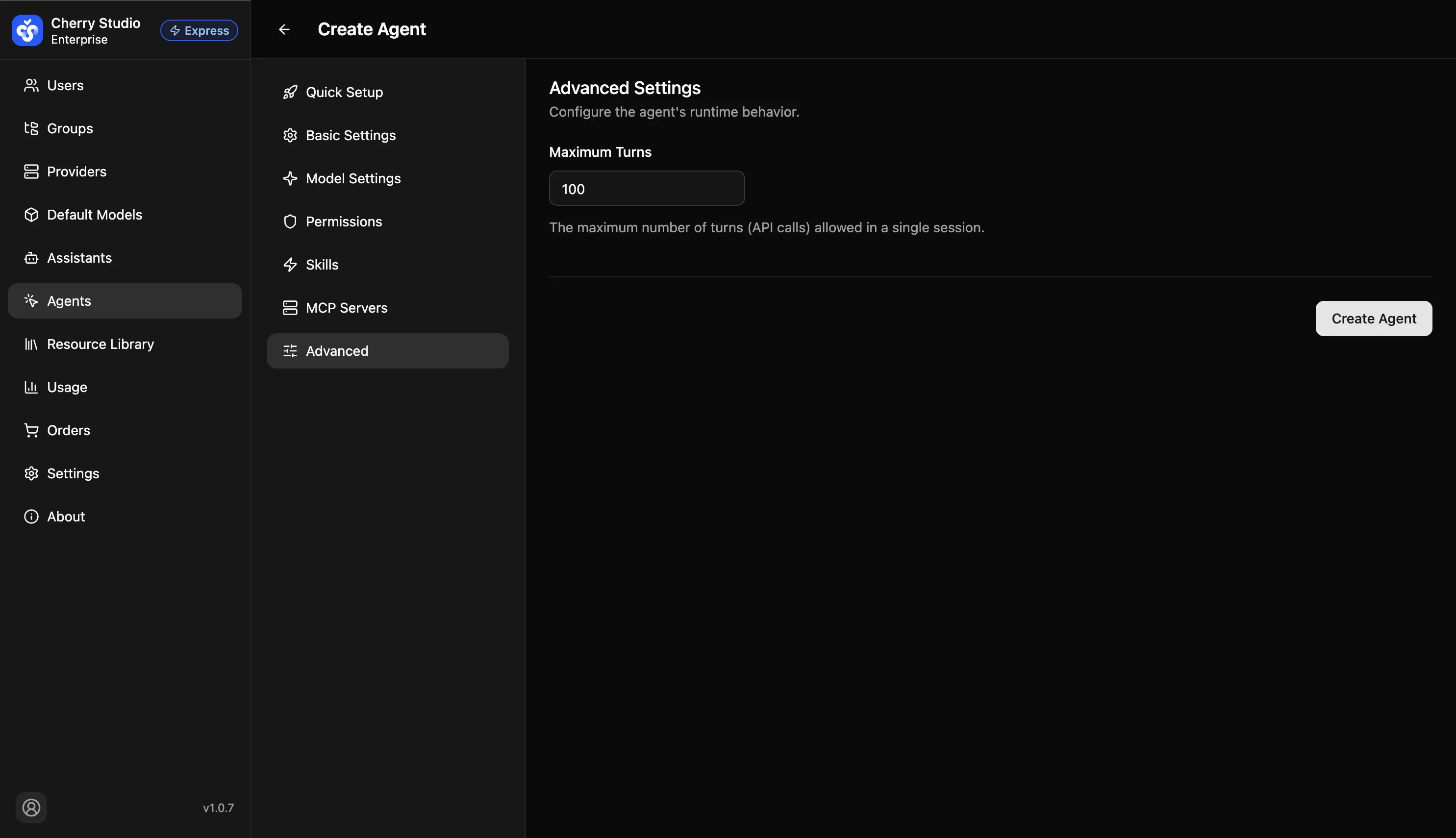
| Parameter | Description |
|---|---|
| Max Turns | Maximum turns (API calls) allowed in a single session. Default: 100. Prevents infinite loops and controls per-task API costs. |
Agent Management
Manage AI agents with multi-model collaboration, skill binding, and MCP tool integration for complex autonomous task execution.
Agent Skills
Reusable capability modules in the Resource Library designed for agents. Add manually or download from the marketplace, then bind to agents during creation/editing. Access is controlled by group.