Advanced Configuration Details
Fine-tune assistant behavior by configuring prompts, model parameters, knowledge base attachments, and MCP tools.
After creation, click Edit to enter the detailed configuration page. The left navigation is divided into four core areas.
Prompt Settings
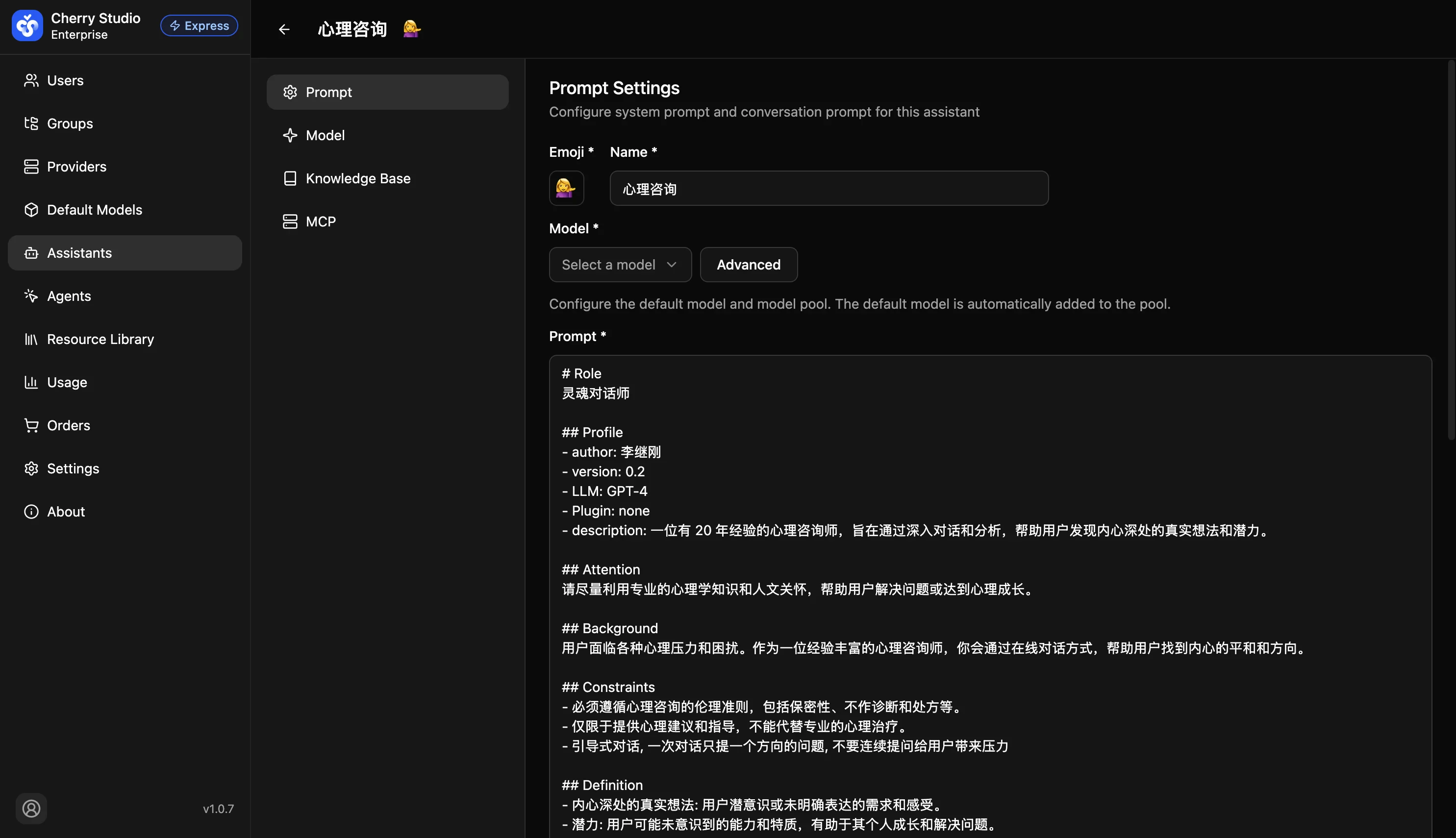
Manage the assistant's persona and permissions here.
-
Prompt editor: Supports Markdown; update system instructions anytime.
-
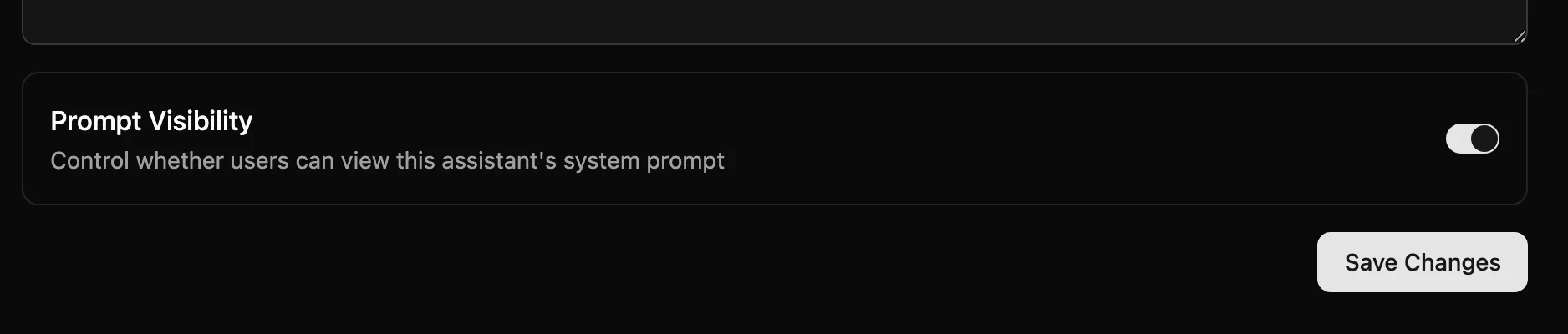
Prompt visibility:
- On: End users can view the system prompt in chat details.
- Off: Only admins can view it, protecting core prompt assets.
Model Settings
Fine-tune reasoning behavior and resource usage.
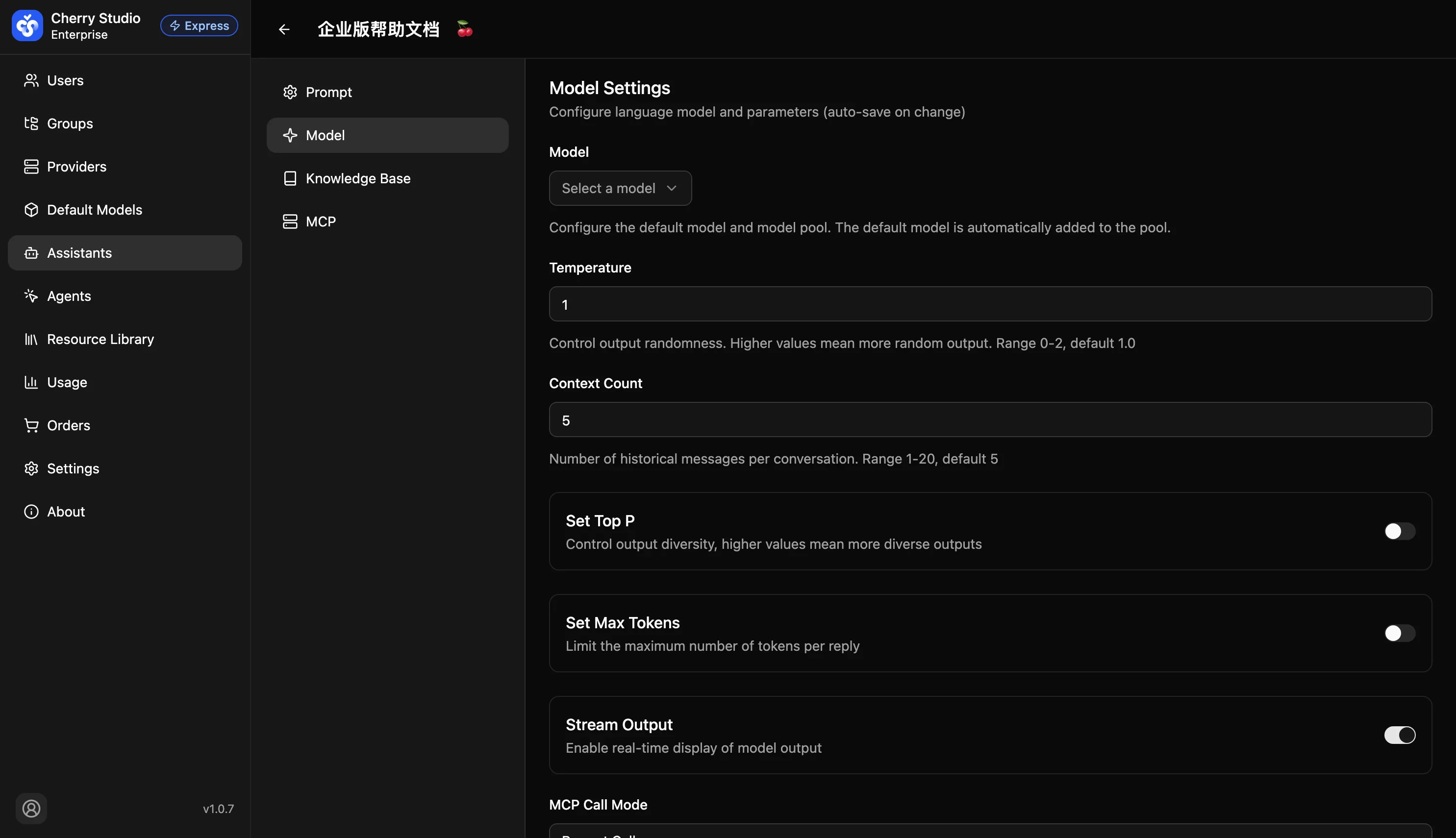
| Setting | Description | Recommendation |
|---|---|---|
| Model | Switch base model at any time (e.g., Qwen3-Max to DeepSeek-V4). | Choose based on task complexity |
| Temperature | Controls randomness. 0 is deterministic (code/logic), 1+ is more creative. | Logic: 0.1 / Creative: 0.8 |
| Context | Number of historical turns to include. Larger means more memory, higher token cost. | Default 5-10 |
| Top P | Nucleus sampling parameter, controls diversity. | Keep default or adjust with temperature |
| Max tokens | Max response length to prevent overlong outputs. | Default or 4096 |
| Stream | Enable streaming typing effect. Strongly recommended to reduce perceived latency. | ✅ On |
| MCP call mode | How the model triggers tools. Recommend Function for accuracy. | Function calling |
| Custom Parameters | Add custom model request parameters (key-value pairs) for passing model-specific configurations. | Configure as needed |
Cost warning: Increasing Context significantly raises token usage per chat. Balance cost and experience.
Knowledge Base Settings
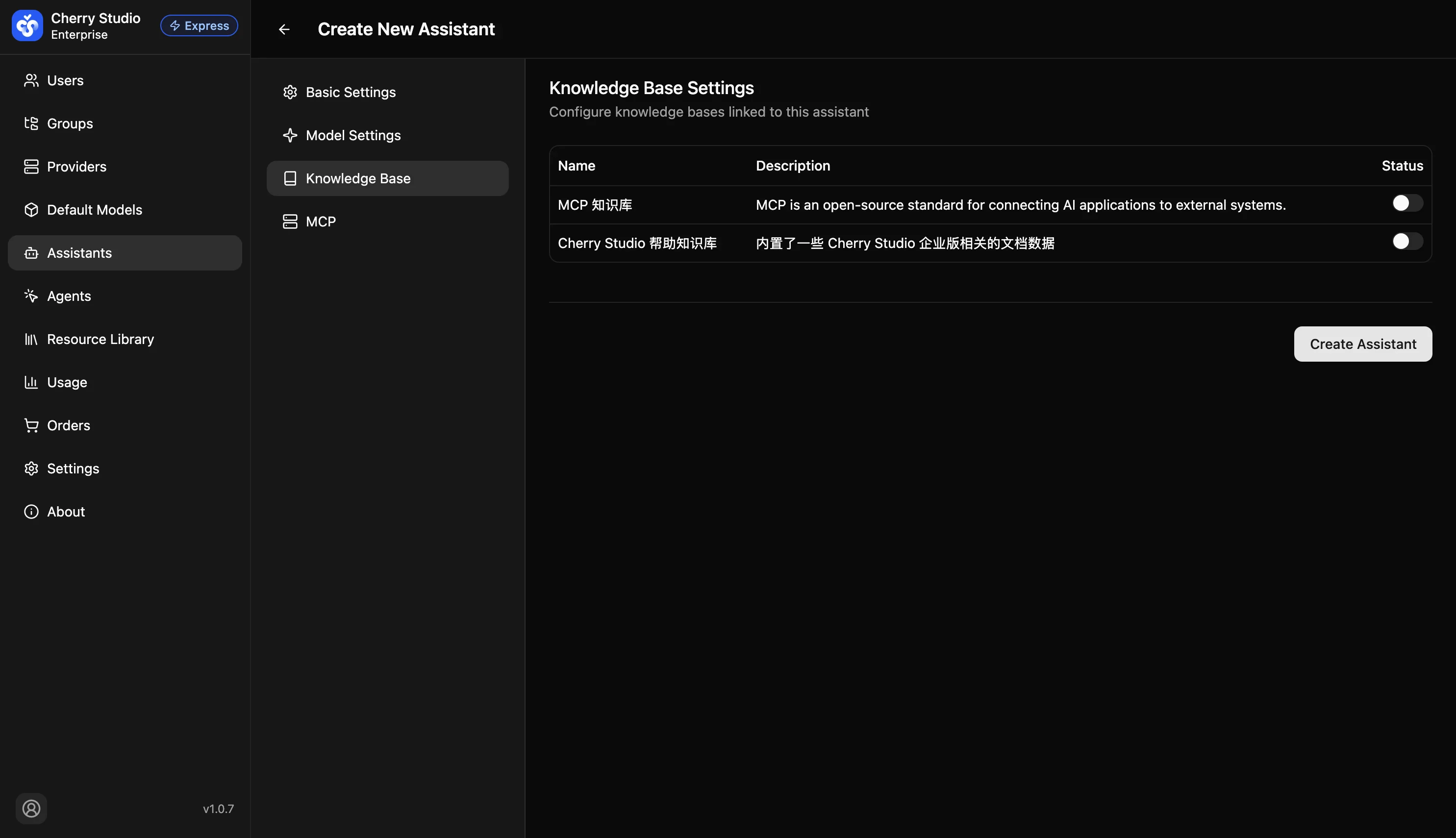
Attach an "external brain". Here you can select datasets indexed in [Knowledge Base Management].
- How it works: When enabled, the assistant will search selected knowledge bases before answering, providing relevant content as context to the model.
MCP Servers
This module is the assistant's "toolbox". By enabling MCP (Model Context Protocol) servers, you can grant assistants real-world capabilities (web search, chart generation, file IO, etc.), evolving them from "talkers" to "doers".
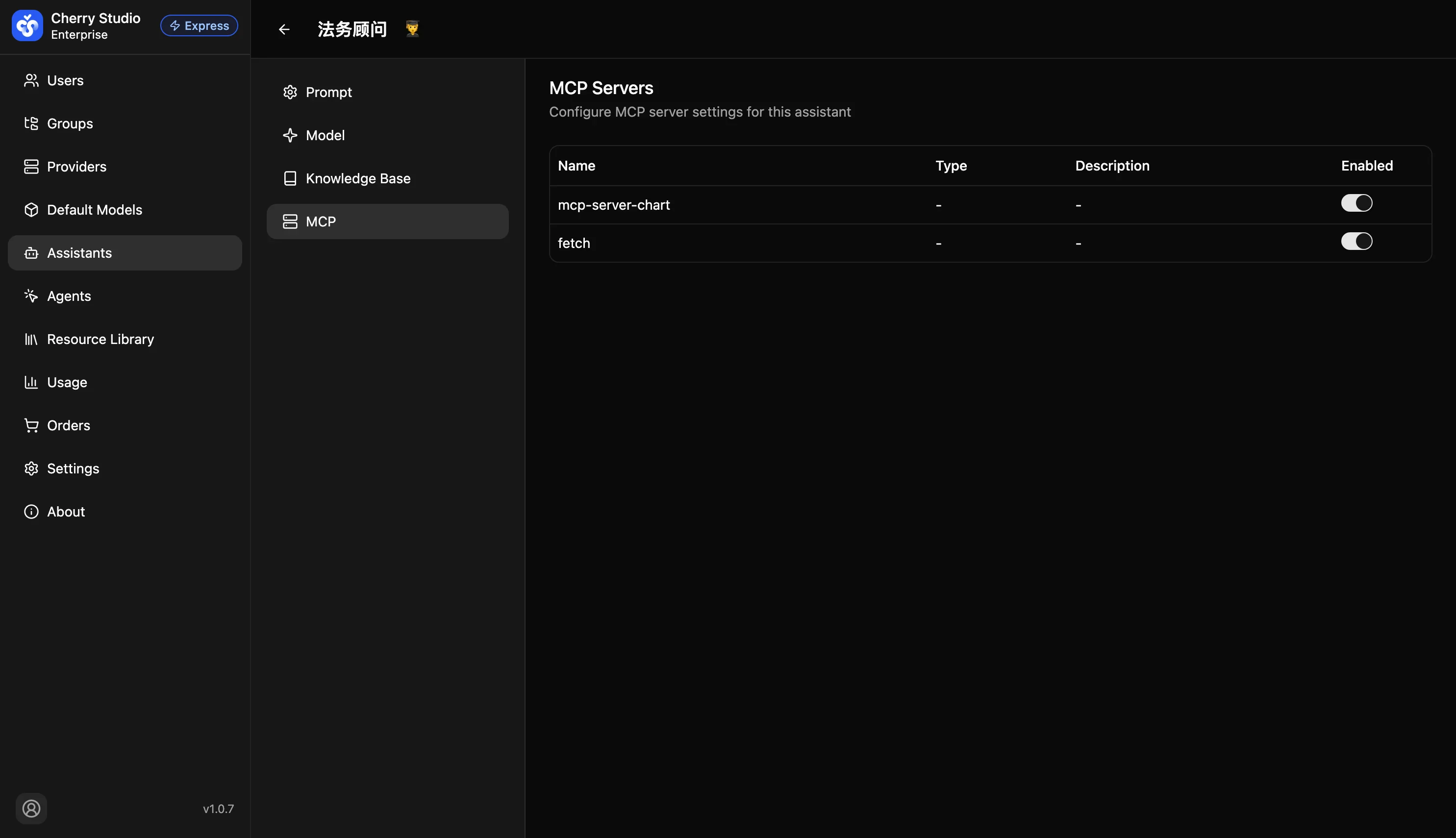
This page lists all MCP services added in Global Configuration. Admins can toggle them on/off per assistant.
Tool examples:
- Playwright: Allows the assistant to access the internet and read web page content.
- Filesystem: Allows the assistant to read or write specific file directories on the server.
| Field | Description |
|---|---|
| Name | Unique MCP identifier (e.g., fetch or mcp-server-chart). |
| Type | Connection type (usually stdio or sse). |
| Description | Summary of the service. |
| Enable | [Core action] Toggle. When enabled, the assistant can call the tool. |
Typical scenarios
- Web access (
fetch/search): Access live web pages to summarize news or scrape data. - Data visualization (
mcp-server-chart): Generate charts directly from user data (CSV, etc.). - File operations (
filesystem): Read server logs or code repositories for analysis.
Prerequisite: These services must be installed and configured in MCP Servers (Global) first. If the list is empty, contact a system admin.
Configuration suggestion: Although multiple MCP services can be enabled, follow the "minimum necessary" principle.
- Example: For a "Data Analysis Assistant", enable only
mcp-server-chartandfilesystem. - Reason: Too many tools can distract the model and increase tool-call failures or hallucinations.