Maintenance Operations
Manage License refresh, revocation for server migration, and common troubleshooting FAQs.
Navigation: Admin Console → License → Refresh Info / License Management buttons at the bottom
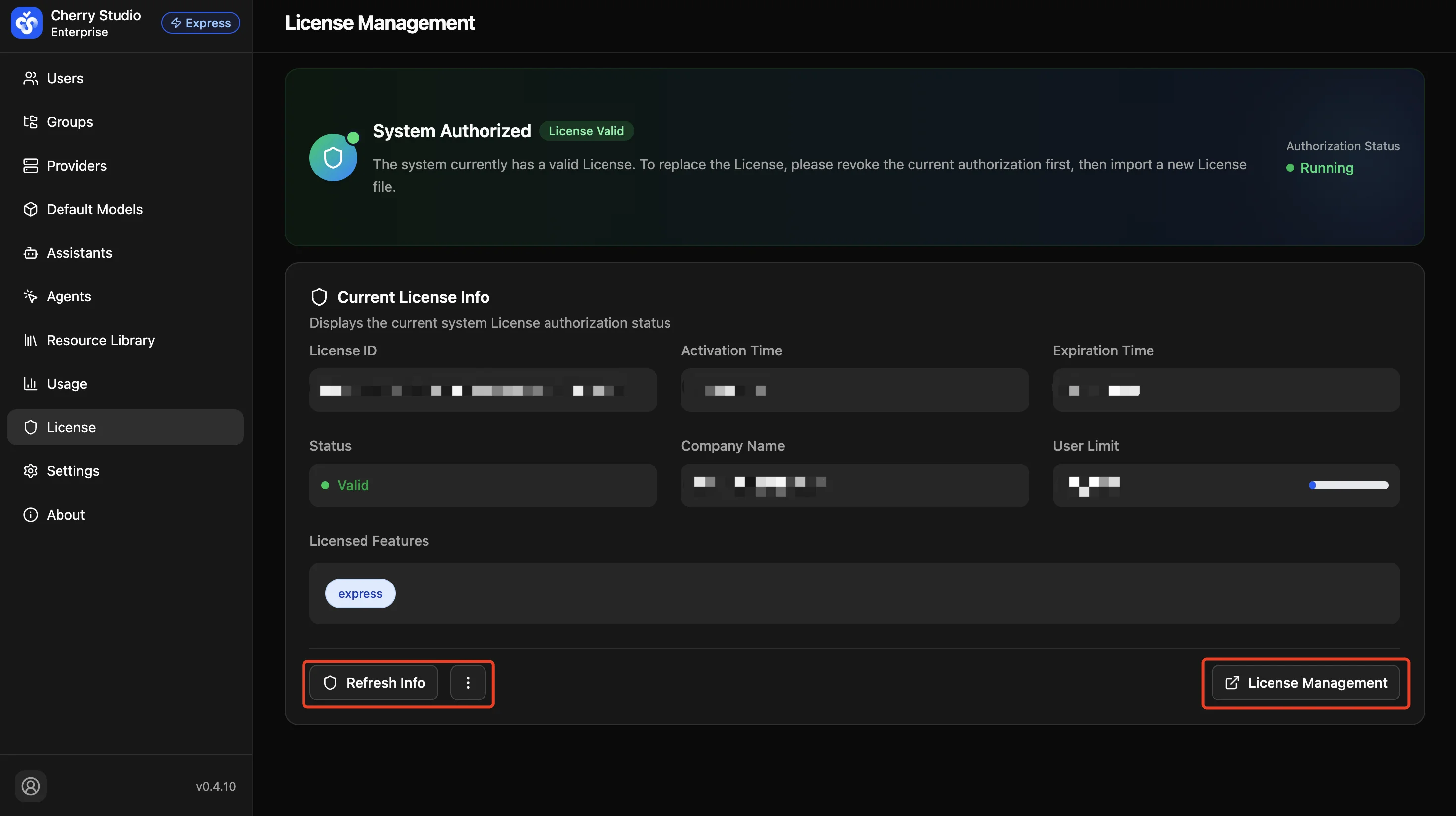
Refresh license information
After renewal or capacity expansion (e.g., more seats), the local system may not sync immediately.
- Click Refresh info at the bottom.
- The system will request the latest license status from the licensing server.
- Success indicator: The "Expiration time" or "User limit" values update to your latest purchase.
Revoke License (migrate authorization)
If you need to replace server hardware or migrate production to a new private cloud, you must release the current license before activating it on the new machine.
- Click the ┇ (More) icon next to Refresh info.
- Select Revoke License from the menu.
- Enter the confirmation text if prompted.
Dangerous operation warning:
Revoking the License will immediately unbind the license from the current server!
- The system will immediately switch to "Unlicensed" status.
- All non-admin users may be unable to log in.
- Do not perform this operation unless you have a new license ready or plan to decommission this server.
FAQ
Q: Why does refresh fail?
A: Check server network connectivity. In a pure intranet environment (no public internet), automatic refresh will fail. Contact support to obtain a new offline license file and import it (the import entry appears in the unlicensed state).
Q: What if the user limit is full?
A: You have two options:
- Go to User Management and delete or disable accounts for departed employees to free seats.
- Contact Cherry Studio sales to purchase additional user seats.
Q: Will data be lost after license expiration?
A: No. Expiration only restricts service access (e.g., no chat, no login). Knowledge base data, model settings, and conversation history remain in the database. Once a valid license is imported, the system recovers immediately.