Resource Permission Configuration
Configure visibility of models, assistants, knowledge bases, and other resources in group settings to define the AI workspace for members.
Navigation: Group Management → Click the Settings button for the target group → Expand the Resource Visibility panel on the left.
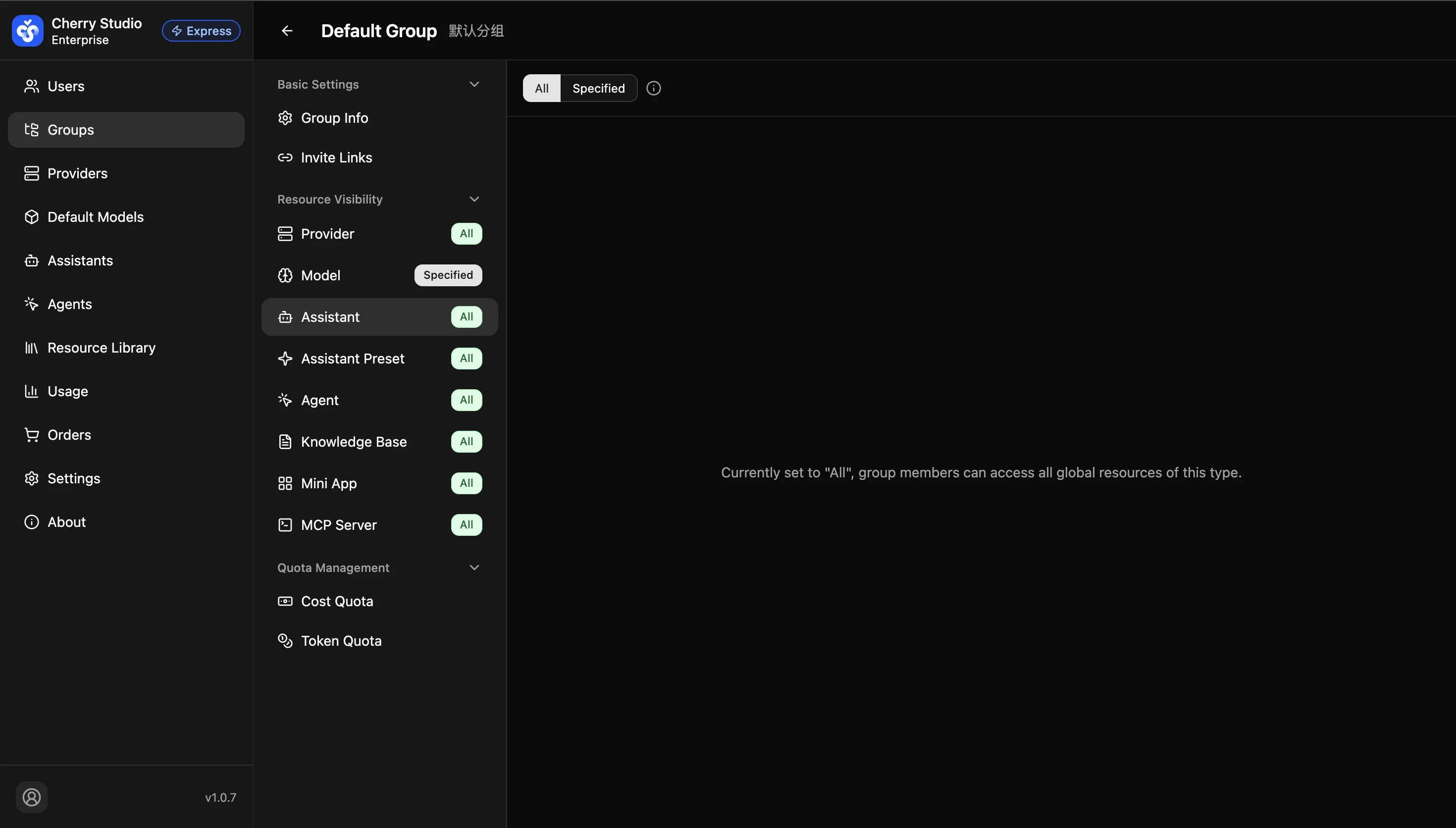
Configure Assistant Permissions
Control which preset agents appear in the left "Assistants" sidebar of the Cherry Studio client.
- All: Users can access all public assistants in the enterprise library.
- Specified: (Recommended) Select only the assistants needed by the business line to keep the UI clean.
Steps:
- In the group settings page, expand Resource Visibility on the left and click the Assistant tab.
- Click the Specified toggle at the top.
- Select target assistants from the list (e.g.,
Translation Assistant,Code Reviewer).
Configure Model Permissions
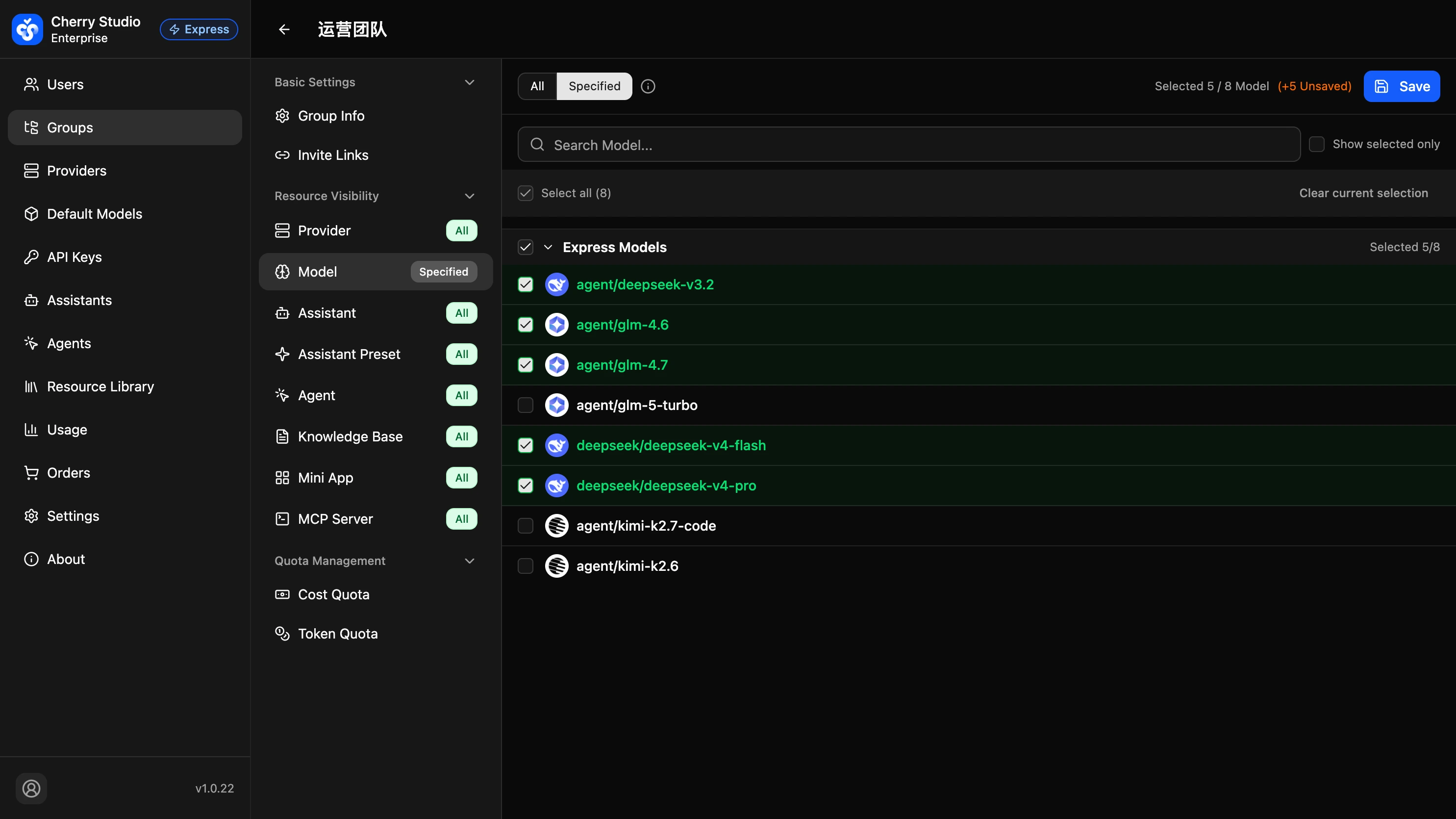
Control which LLMs are available in the model dropdown at the top of the chat window.
Cost control tip: Proper model permissions are the most effective way to control API spending. Allow expensive models (Qwen3-Max, DeepSeek-V4, etc.) only for core R&D or management teams.
Steps:
- Click the Model tab on the left.
- Click the Specified toggle at the top.
- The system lists all configured model providers.
- You can:
- Select all by provider: Check the box next to the provider name to authorize all models under that provider.
- Select individual models: Expand the provider and select specific Model IDs (e.g.,
qwen3-max,deepseek-v4).
- Use search to quickly find model names.
- Check Show selected only to verify the assigned list.
Other Resource Visibility Settings
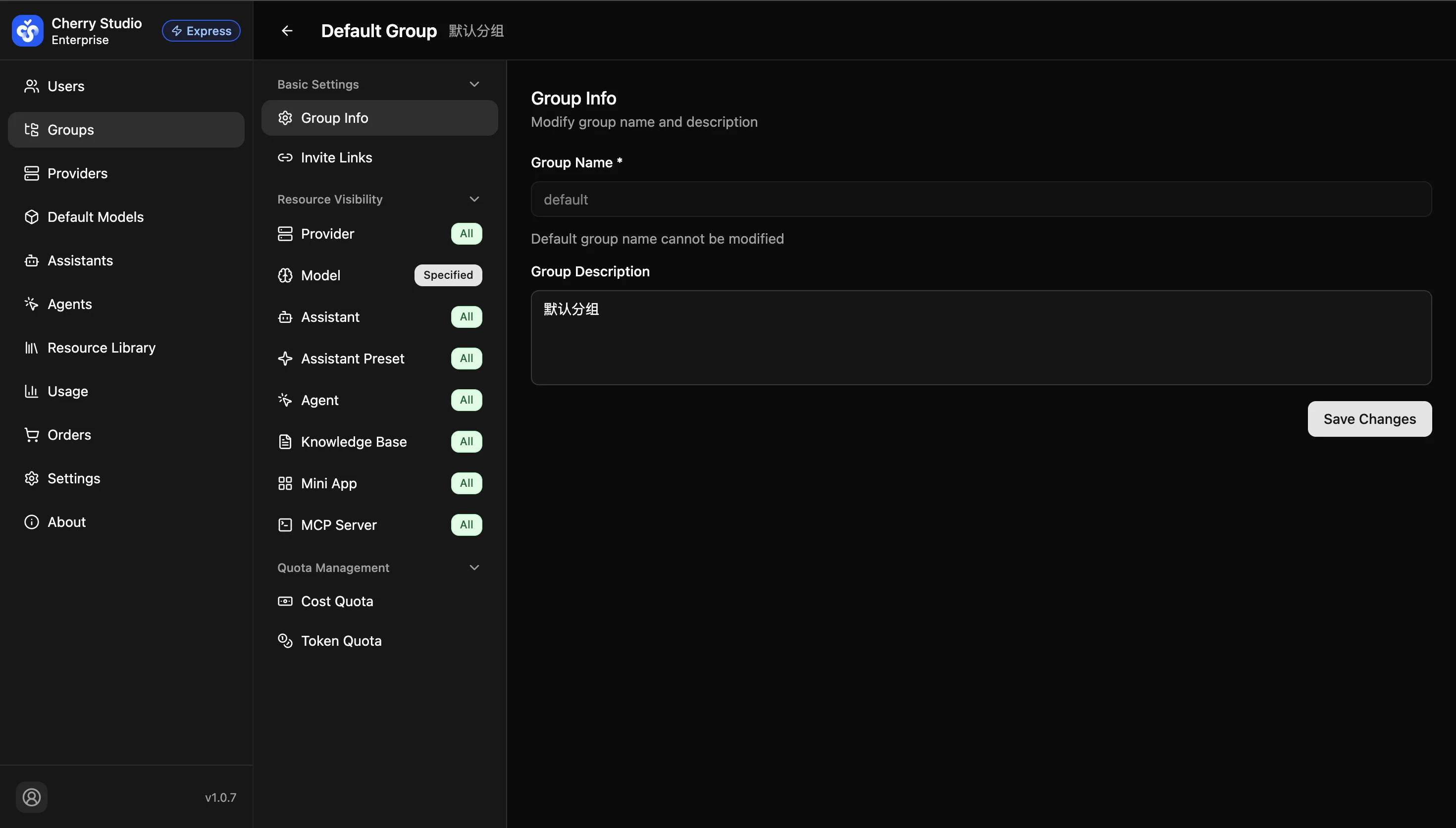
Beyond assistants and models, the group settings page provides visibility controls for additional resource dimensions. The configuration approach is the same as above.
| Tab | Description |
|---|---|
| Providers | Control which model providers are visible to this group. |
| Assistant Templates | Control which assistant templates are visible in the Resource Library. |
| Agents | Control which agents are visible to this group. |
| Knowledge Base | Control which knowledge base resources are visible. |
| Mini Programs | Control which mini programs are visible. |
| MCP Services | Control which MCP servers are visible. |
Each tab supports both "All" and "Specified" modes. Follow the same steps described above for assistants and models.
Quota Management
Token Quota
In the group settings page, expand Quota Management on the left → Click the Token Quota tab to set token-based usage limits for this group.
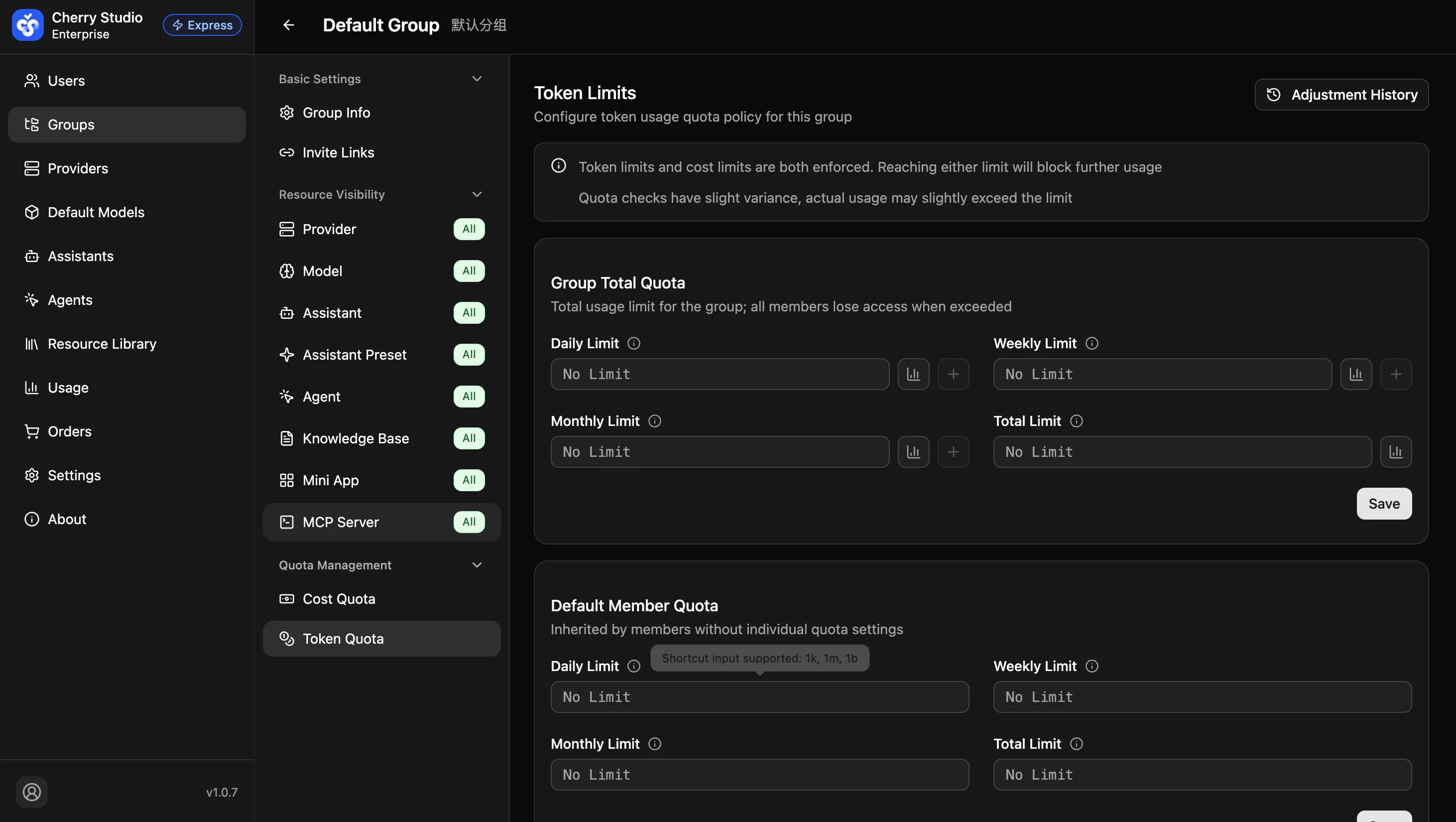
Token Quota is configured at three levels:
1. Group Total Quota
Sets the usage cap for the entire group. Once exceeded, all members in the group will be blocked from further usage.
| Setting | Description |
|---|---|
| Daily Limit | Daily usage cap, resets automatically each day |
| Weekly Limit | Weekly usage cap, resets automatically each week |
| Monthly Limit | Monthly usage cap, resets automatically each month |
| Total Limit | Cumulative usage cap, does not auto-reset |
2. Default Member Quota
Sets the default cap for members without individual quota settings. To configure different limits for a specific user, use the user management page.
3. Member Quota Cap
The maximum quota a group admin can assign to an individual member. Prevents group admins from allocating excessively high quotas.
Token limits and cost limits are enforced simultaneously. Reaching either limit will block further usage. Leave empty for unlimited.
Cost Quota
In the group settings page, expand Quota Management on the left → Click the Cost Quota tab. Cost Quota uses monetary amounts (rather than token counts) to control API spending for the group and its members.
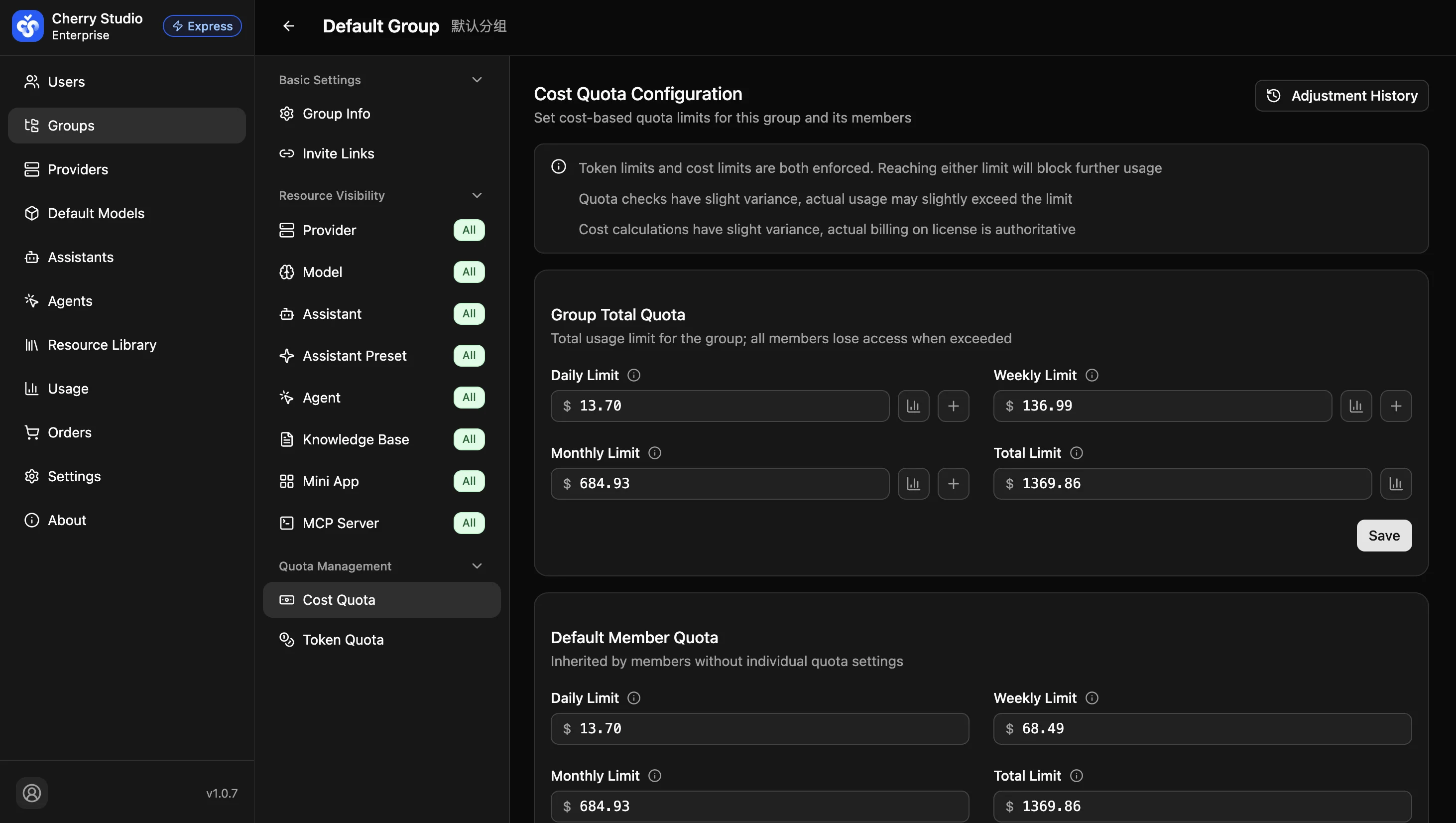
Like Token Quota, Cost Quota is configured at three levels:
1. Group Total Quota
The total cost limit for the entire group. Once exceeded, all members in the group will be blocked from further usage. Supports daily, weekly, monthly, and total limits.
2. Default Member Quota
Members without individual quota settings will inherit this default.
3. Member Quota Cap
The maximum quota a group admin can set for an individual member.
Token limits and cost limits are enforced simultaneously. When either limit is reached, the user's subsequent API calls will be blocked.
Temporary Quota Adjustment
On the Quota Management → Cost Quota or Token Quota page, each period-based limit field (daily / weekly / monthly) has a + temporary adjustment button. Use it to inject temporary allowance into Group Total Quota or Default Member Quota for the current period without modifying the saved quota.
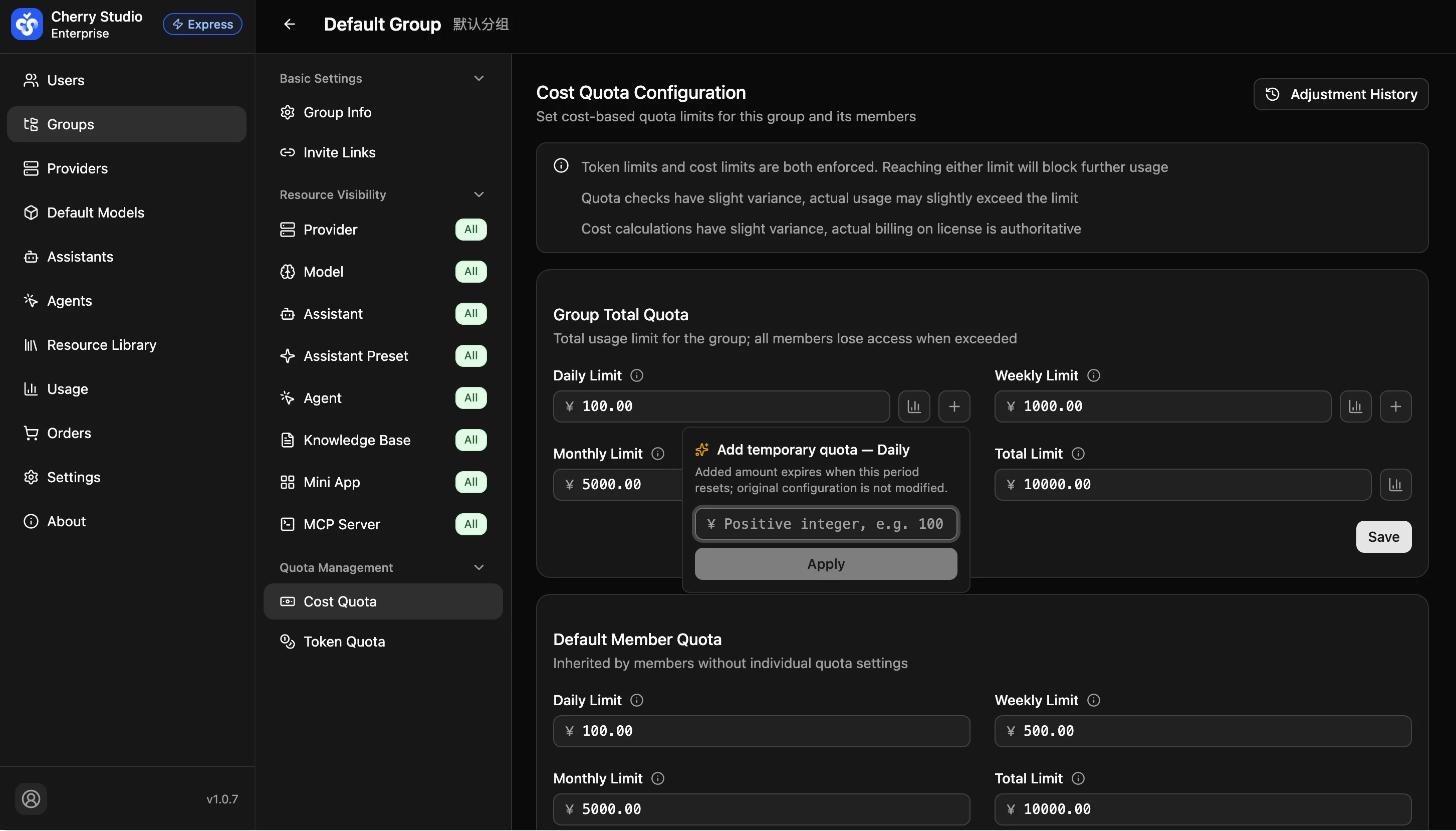
How it works:
- Click the + button beside a limit field → enter the amount in the popover → click Apply.
- The added amount expires when the period auto-resets and never modifies the saved limit value.
- The Total Limit field does not support temporary adjustments (no auto-reset).
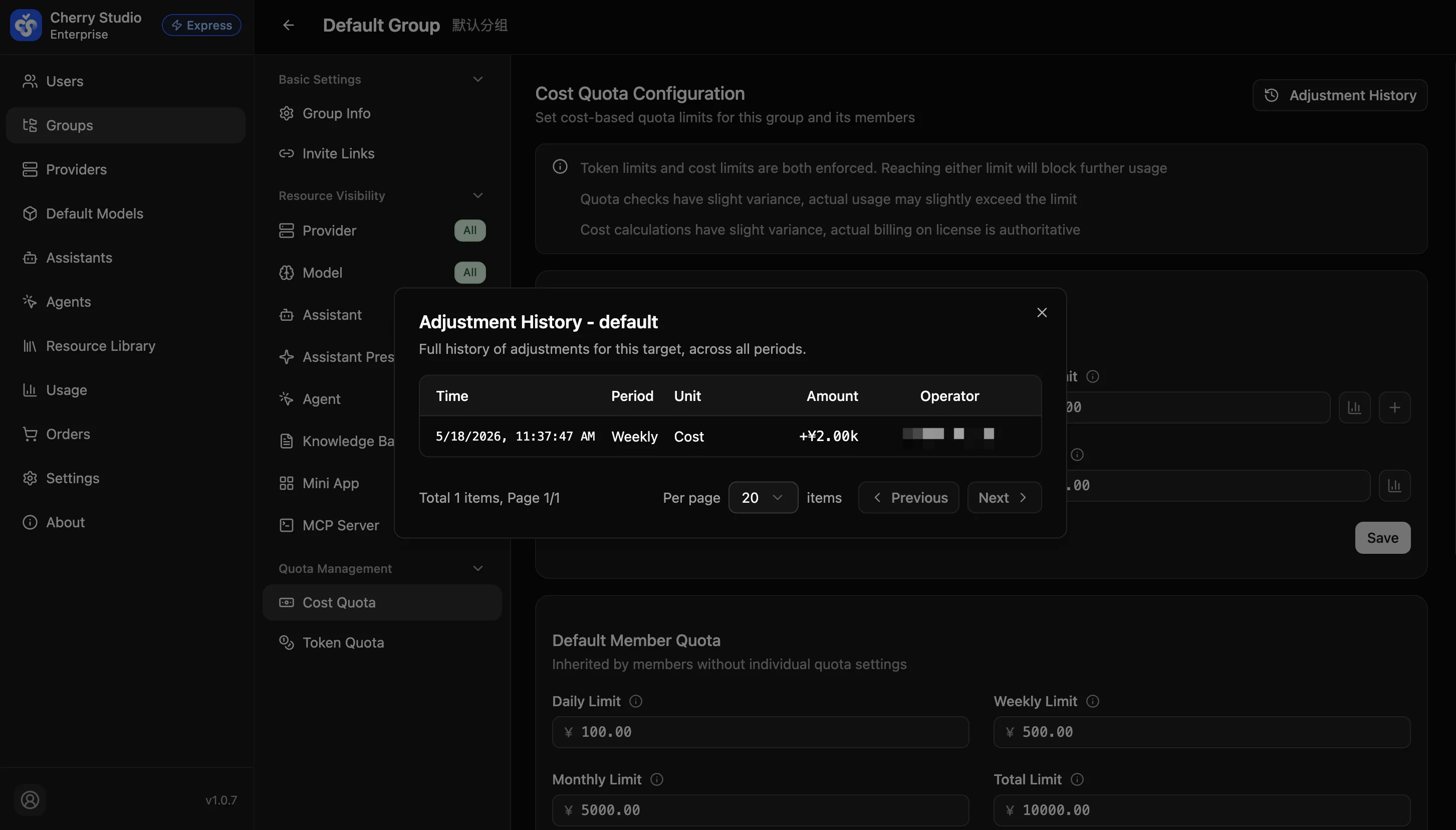
View history: Click Adjustment History at the top right of the page to open the group's full adjustment history dialog across all periods.
Validate Permission Configuration
To ensure correct configuration, run a quick smoke test:
- Create a test user and assign them to the new group.
- Sign in to the Cherry Studio client with the test account.
- Checkpoint A: Start a new chat and open the model list. Confirm it only contains selected models.
- Checkpoint B: Go to the assistant library and confirm only authorized assistants are shown.