Provider Management (Express)
Configure and manage the Express edition provider, offering one-stop aggregated model services and unified quota management.
Overview
Navigation: Admin Console → Providers
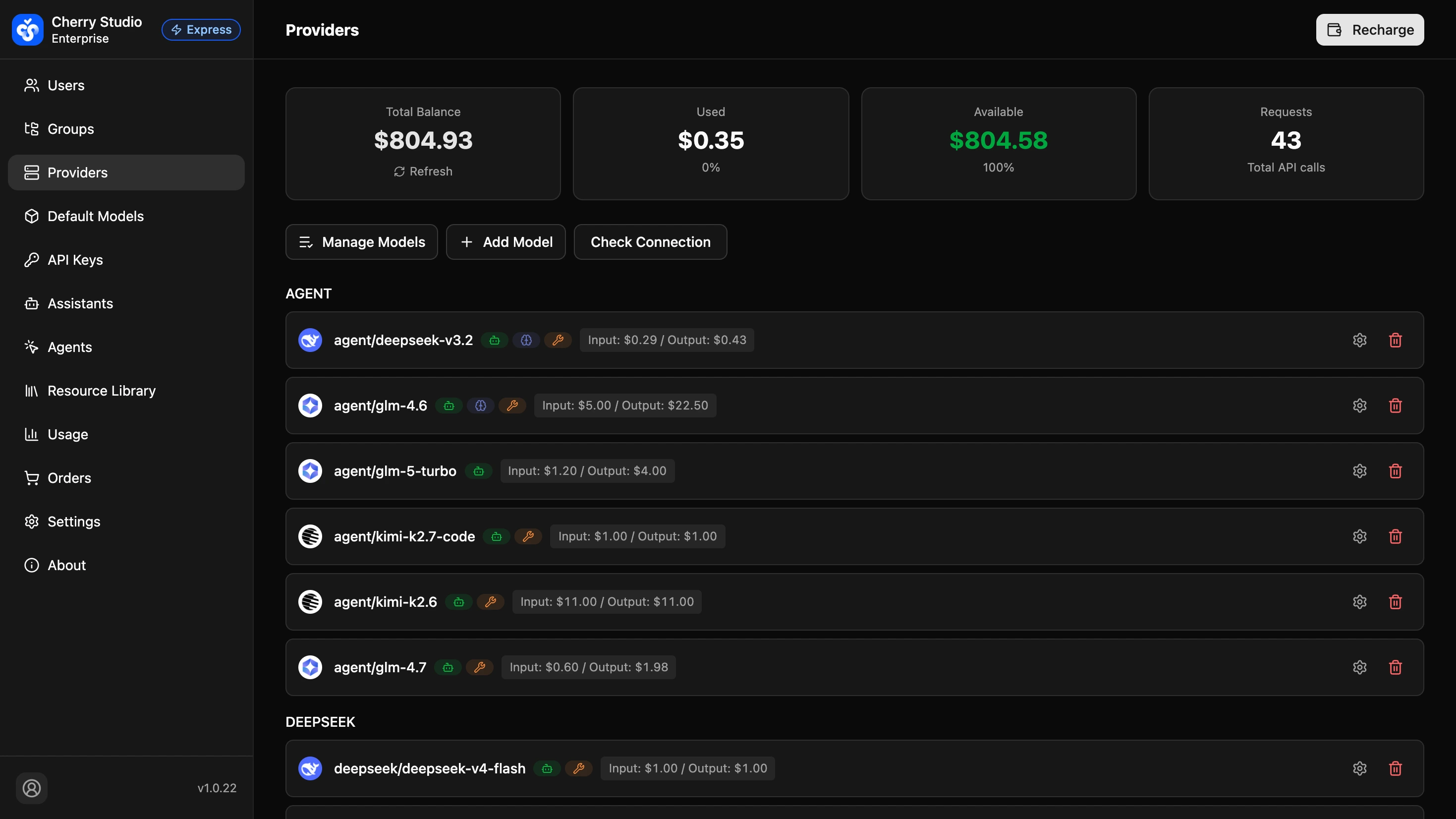
Cherry Studio Express is an enterprise-grade, one-stop model aggregation service. Express provides a unified quota pool and direct access to top mainstream models (e.g., GLM-5.2, DeepSeek-V4) as well as popular open-source models — no need to apply for API keys provider by provider from each model's official site.
Core value:
- No ops: No need to manage dozens of API keys and accounts.
- Out of the box: No need to configure providers one by one — call models from multiple vendors directly within the enterprise.
- Unified billing: All model usage is deducted from the enterprise balance.
Balance Dashboard and Top-up
At the top of the page, you can see enterprise usage:

- Total Balance: Total funds in the enterprise account. Click "Refresh" to get the latest balance.
- Used: Amount and percentage consumed.
- Available: Remaining balance available for model calls and percentage.
- Requests: Total API call count.
Recharge
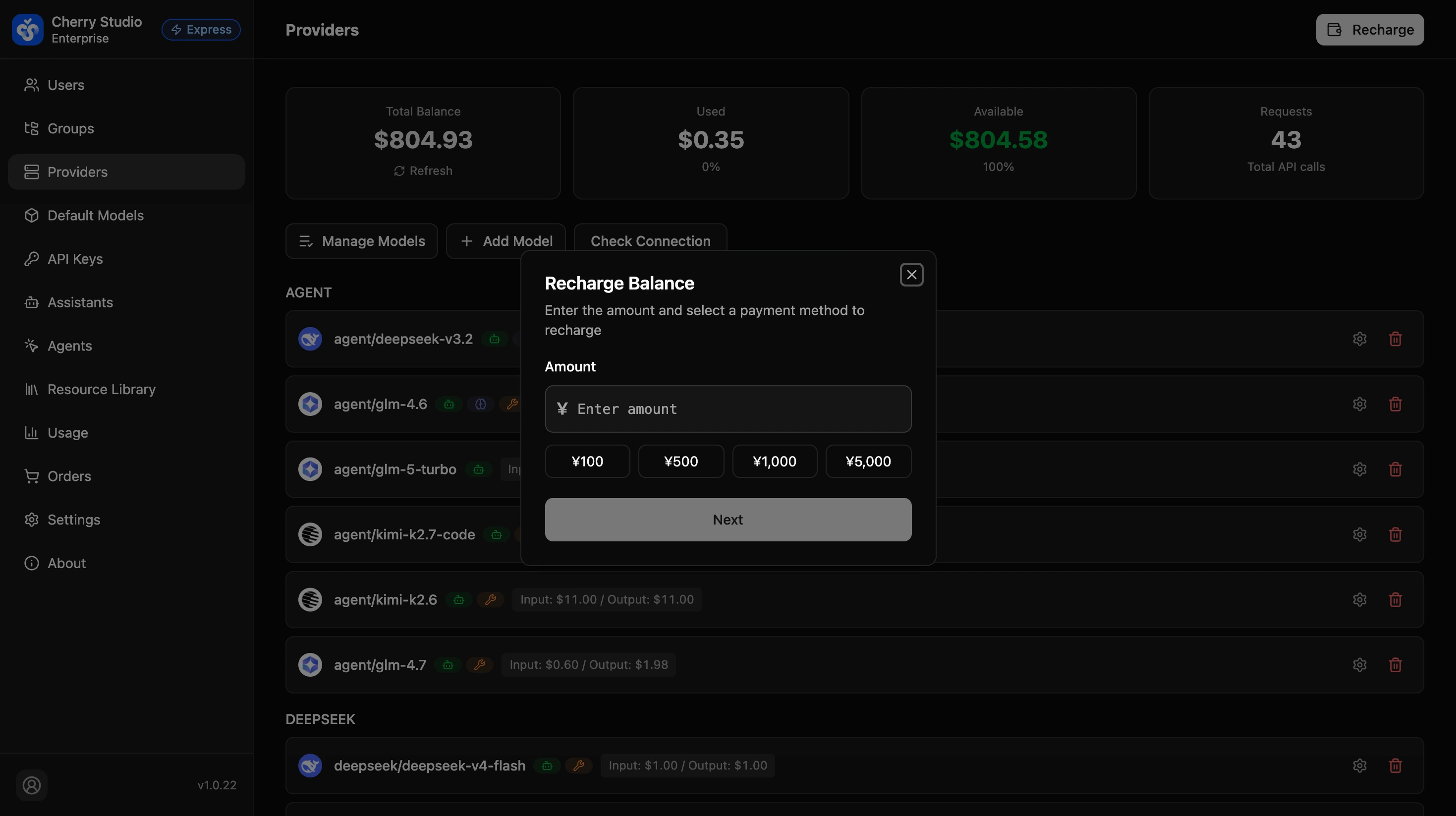
Click the Recharge button in the top right, enter an amount or select a preset (¥100, ¥500, ¥1,000, ¥5,000), and choose a payment method to complete the top-up. Balance can be used across all Express models.
Model Publishing and Management
The system provides many models by default. Admins can decide which are visible to employees. Three action tabs are available at the bottom of the page: Manage Models, Add Model, and Check Connection.
Enable/Disable Models
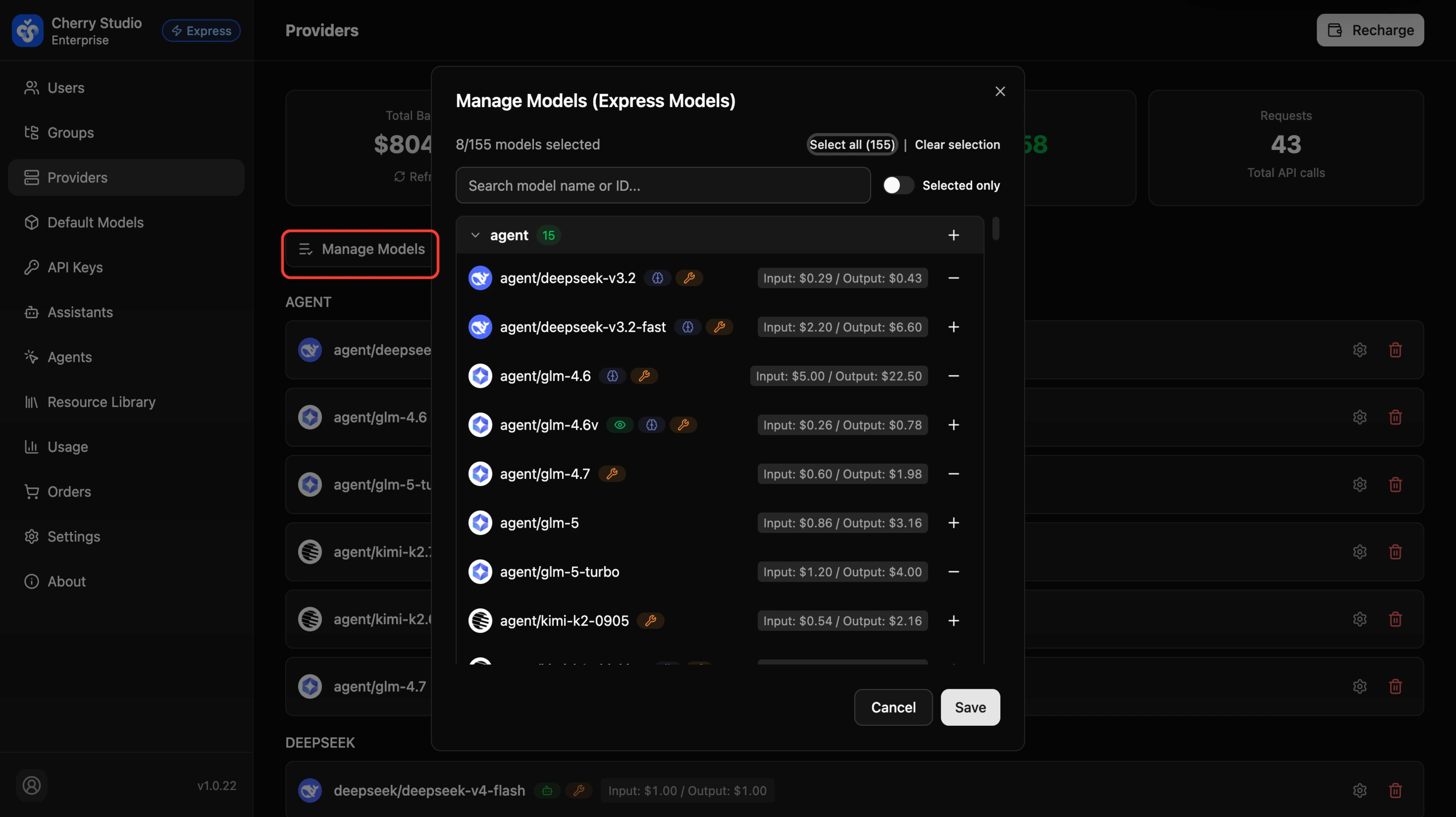
- Click Manage Models at the bottom.
- In the pop-up list, browse models grouped by provider. Each model displays capability tags and input/output pricing.
- Use +/- to control model visibility:
- + (Add): Add to available list (visible to employees).
- - (Remove): Hide from employees.
- Use the search box to quickly find models, or toggle "Selected only" to filter currently enabled models.
- Click Save.
Manually Add New Models
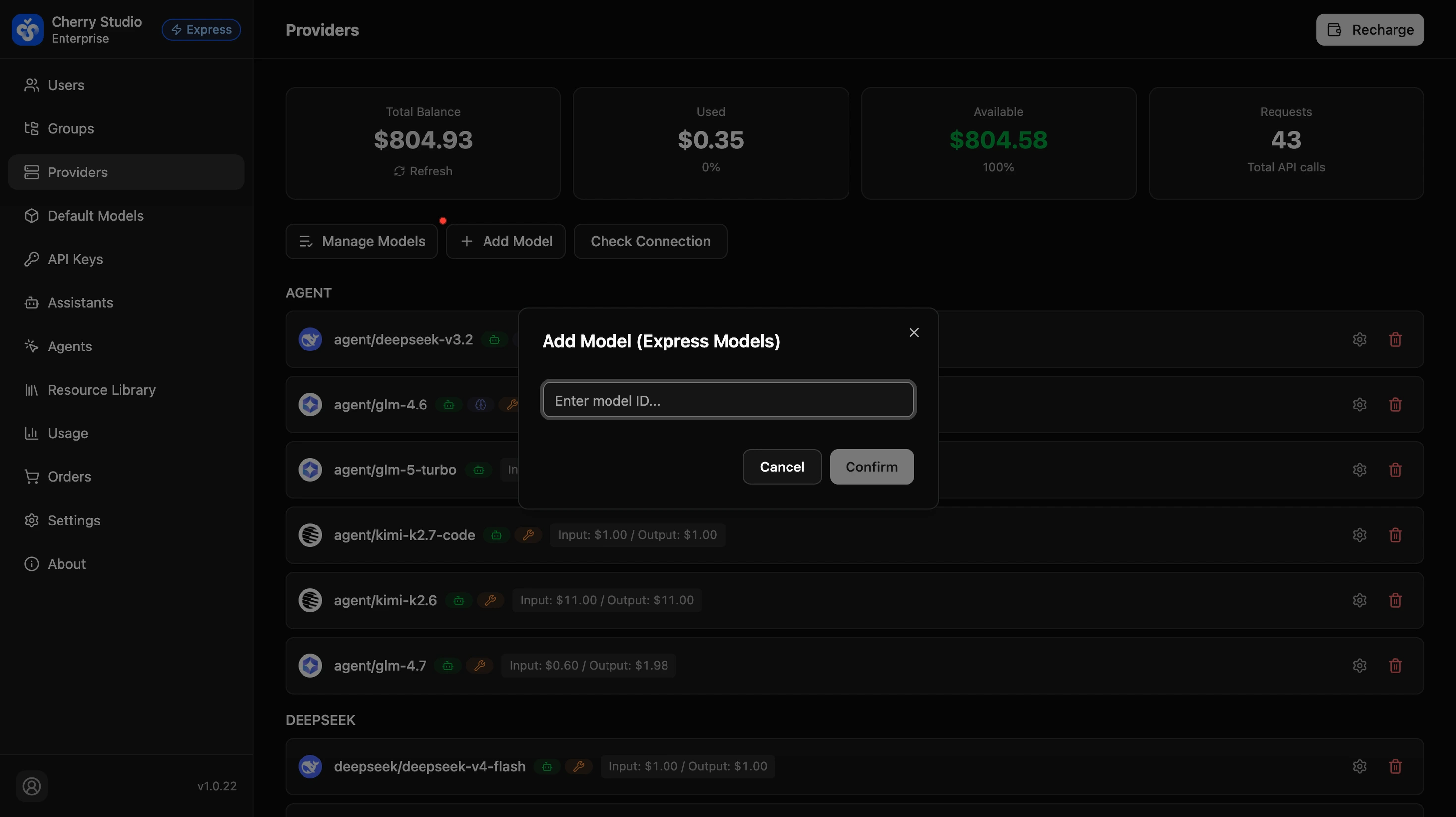
If a new model (e.g., deepseek-v4) is announced but not yet in the list, you can add it manually:
- Click + Add Model.
- Enter the official Model ID (e.g.,
qwen3-max). - Click Confirm to use it immediately.
If you want developers to call these Express models directly from external applications, ask them to use the full model-id@provider_id format for the model field, and refer to External App Access (Express Models) for the complete setup.
Understanding Capability Tags
In the model list, each model name includes colored icons indicating capability. These matter when distributing models.
| Meaning | Description |
|---|---|
| 🧠 Reasoning | High-IQ mode. Models like DeepSeek-V4 or GLM-5.2 provide deep thinking and reasoning, suitable for complex logic, math problems, or code architecture design. |
| 👁️ Vision | Image understanding. Models can parse images. If the model lacks this icon, image uploads will fail. |
| 🌐 Web | Native browsing. Some models have native search integration (note: Cherry Studio typically uses MCP for web access). |
| 🔧 Tools | Plugin support. Most important icon. Only models with the wrench icon support knowledge base (RAG), chart generation, or MCP tools. |
| 🆓 Free | Cost control. Calls do not consume balance. Often appears on local models (Ollama) or official free trials. Suitable for debugging or simple chats. |
| 📊 Embedding | Knowledge base foundation. These models are not for chat. They convert text into vectors to build knowledge base indexes. Selecting them in chat will error. |
| 🔀 Rerank | Accuracy optimization. These models are not for chat. They rescore and rerank retrieval results to improve answer accuracy. |
Configuration tip: For the default assistant model, choose a model with the 🔧 (Tools) icon; otherwise the assistant cannot use the knowledge base.
Check Connection
Before using a model, you can verify connectivity with the provider.
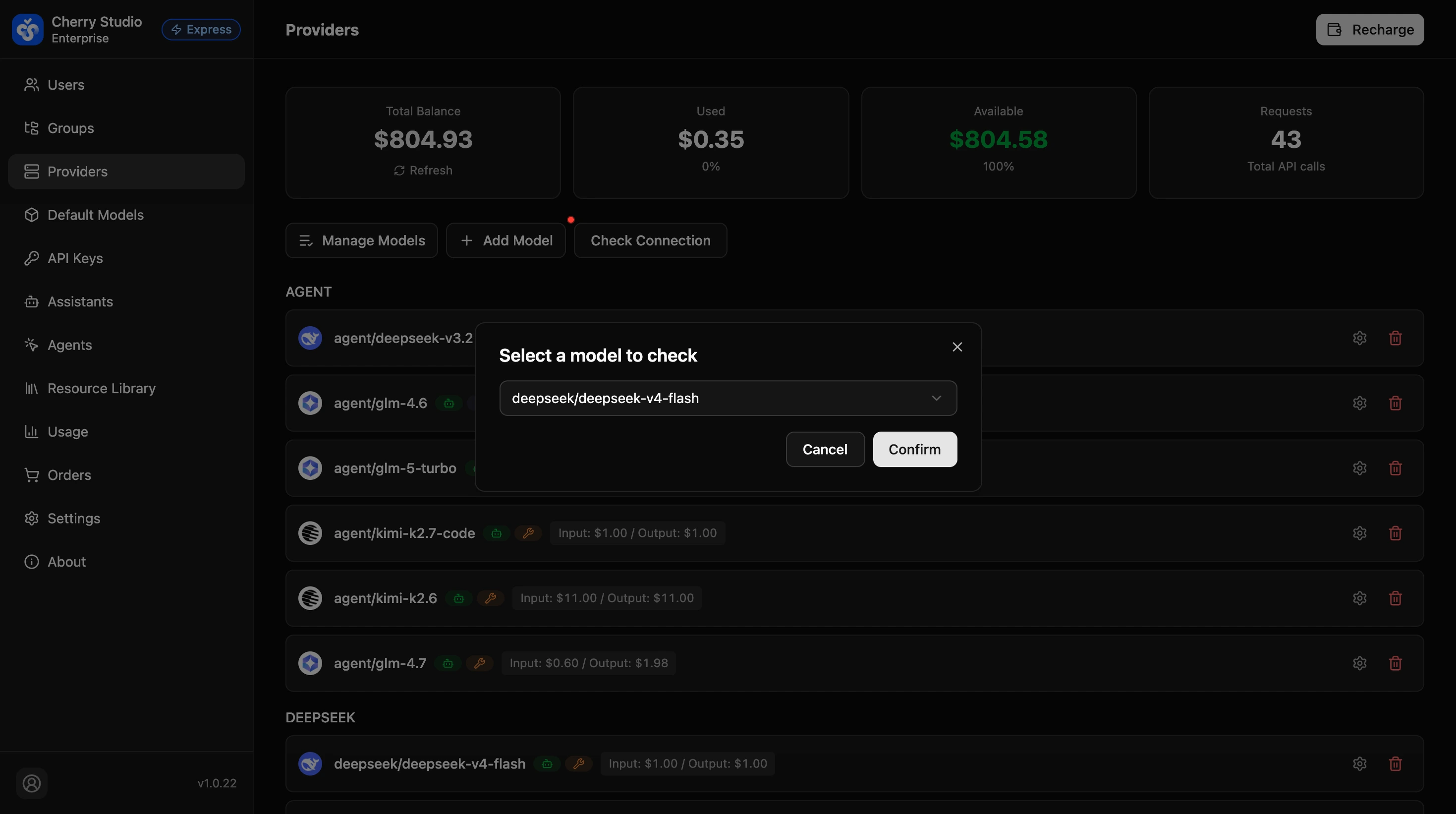
- Click Check Connection at the bottom.
- Select the model to check in the pop-up.
- Click Confirm — the system will automatically test model availability.
- Success feedback: a toast notification "Check successful, API Key is valid" appears in the bottom right.
Edit and Delete Models
Admins can edit or delete models that are already listed.
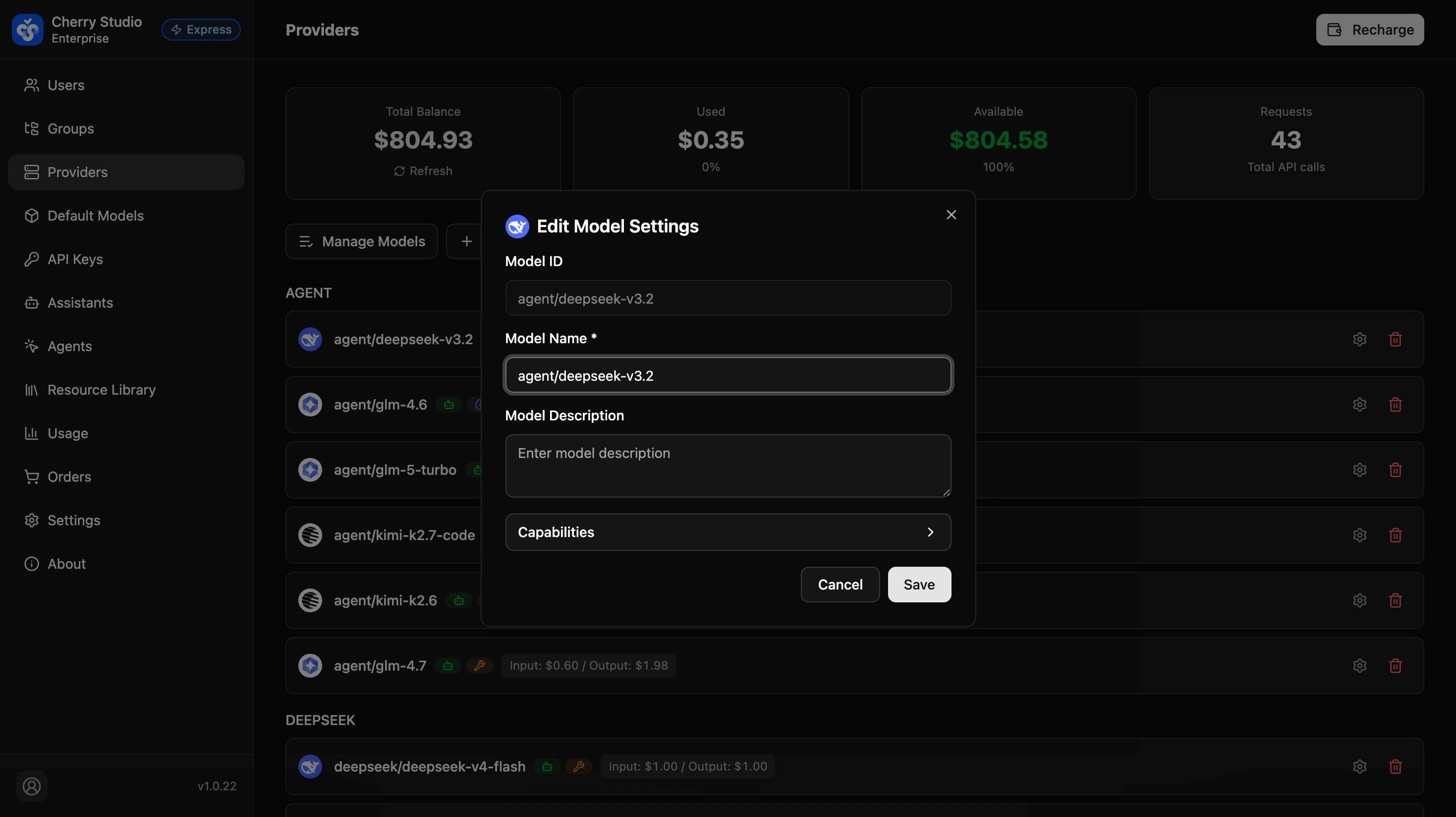
Edit a Model
- Click the ⚙️ Settings button on the right side of the model to open the "Edit Model Settings" dialog.
- You can modify the following:
- Model ID: The model's unique identifier (usually no need to change).
- Model Name: Customize the display name.
- Model Description: Add a description for the model.
- Capabilities: Expand to manually specify model capability tags (Vision, Reasoning, Function Calling, Web Search, Agent, Embedding, Rerank).
- Click Save.
Set capability tags carefully — incorrect configuration may prevent the model from working properly.
Delete a Model
Click the 🗑️ Delete button on the right side of the model to remove it from the list.
FAQ
Q: Why do I see "Balance Insufficient" even with balance?
A: The model might be extremely expensive (e.g., preview models), or your enterprise has a daily spending limit.
Q: Why did a model suddenly become gray or disappear?
A: If an upstream provider has a major outage, Express will automatically fuse/disable the service to protect stability. It will return after recovery.