Network Settings
Configure proxy servers to ensure the system can access the configured model providers and external APIs in restricted network environments.
Configuration Steps
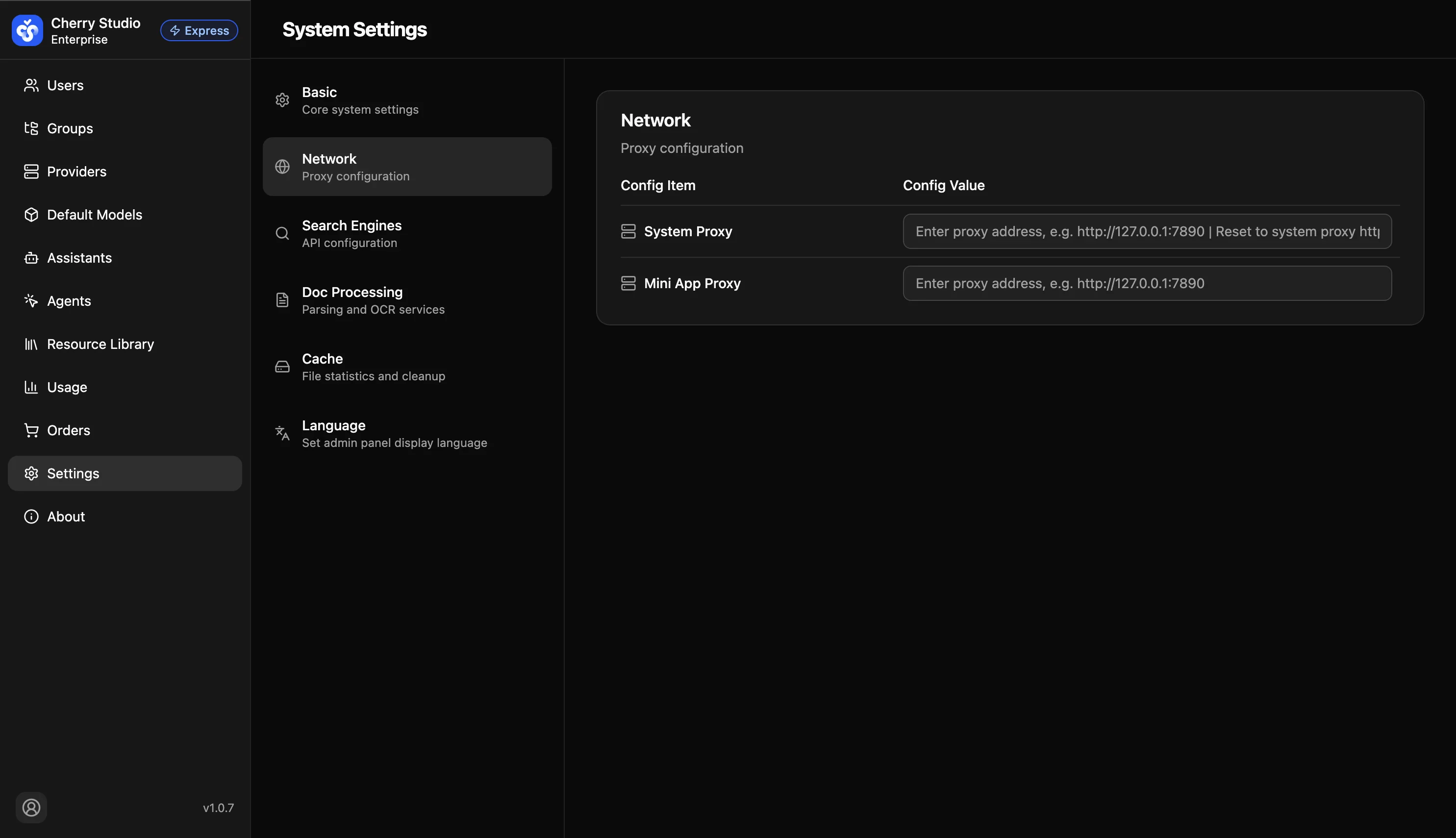
- Go to System Settings > Network Settings.
- Ensure your enterprise proxy server/gateway is running properly (e.g., when the intranet must reach external APIs through a unified egress).
- Enter the proxy address below.
Parameter Details
| Parameter | Description | Example |
|---|---|---|
| System proxy | Global HTTP/HTTPS proxy. Core chat and model list updates go through this channel. | http://127.0.0.1:7890 |
| Mini program proxy | (Optional) Proxy for built-in mini programs or plugin services. Typically same as system proxy. | http://127.0.0.1:7890 |
Proxy Port Reference
Listening ports vary by proxy software/gateway. Use the "local listening port" shown in your actual proxy service settings, and fill in the corresponding http://<address>:<port>.
Note:
- Do not use
socks5://— Cherry Studio currently supports mainlyhttp://proxies. - After configuration, go to Model Management and click Check to verify connectivity.