API Key Management
Distribute and manage API Key credentials for users to call integrated model capabilities via the built-in API gateway.
Create and Manage Keys
- In the user list, click the Keys button in the Actions column for the target user.
- View and configure settings in the Key Settings panel:
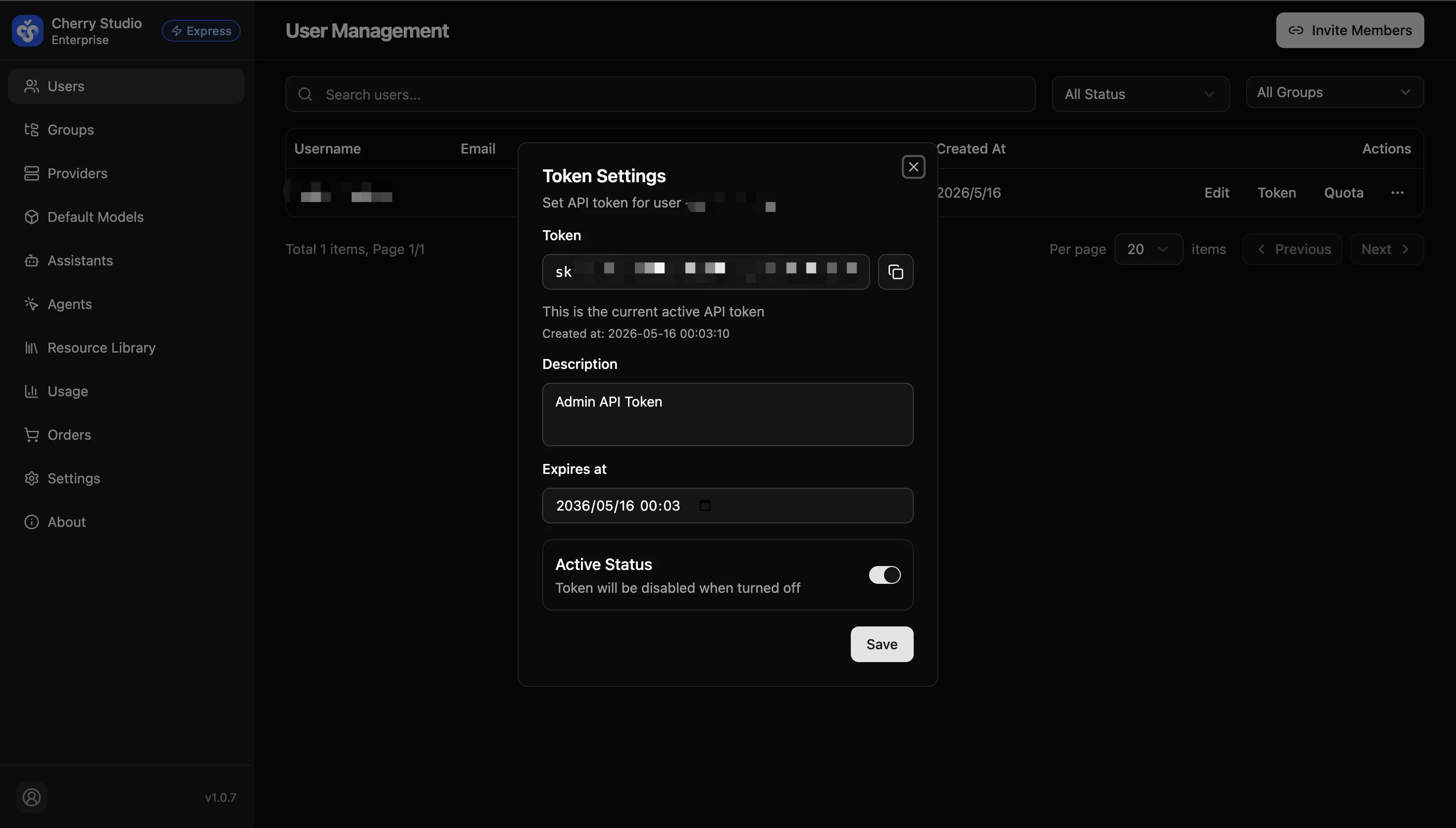
Configuration details
| Field | Description | Example/Action |
|---|---|---|
| Key | System-generated high-strength random string starting with sk-. | Click the copy icon on the right. |
| Description | Note the purpose of this key for audit. | Example: Dev Environment CI/CD |
| Expiration time | Set the key lifetime. Requests will be rejected after expiration. | Select date and time. |
| Enabled status | Control activation or suspension. | Toggle on/off. |
- Click Save to apply.
Verification and Troubleshooting
After configuration, the user can call Cherry Studio APIs with this key.
- How to verify? Send a standard Chat Completion request with the key. If you receive a streaming response, the setup is successful.
- Common errors
401 UnauthorizedorKey Expired:- Check whether Expiration time has passed.
- Check if Enabled status is off.
- Check whether the user's Group has valid model channels configured.
If you want to call Enterprise Express models from third-party clients, IDE plugins, or self-built services, continue to External App Access (Express Models).
Note: An API key represents the user's identity and billing permissions. Remind users to keep it safe and never expose it in public code repositories.