Batch Import Users
Import users and groups in bulk via Excel (.xlsx) or CSV (.csv) files with automatic group creation, ideal for initial enterprise deployments or large-scale user management.
Express users can add members quickly via invite links. See Member Invitation.
Entry point: The Import button in the top-right corner of the User Management page.
Workflow
The import process has 3 steps:
Step 1: Upload File
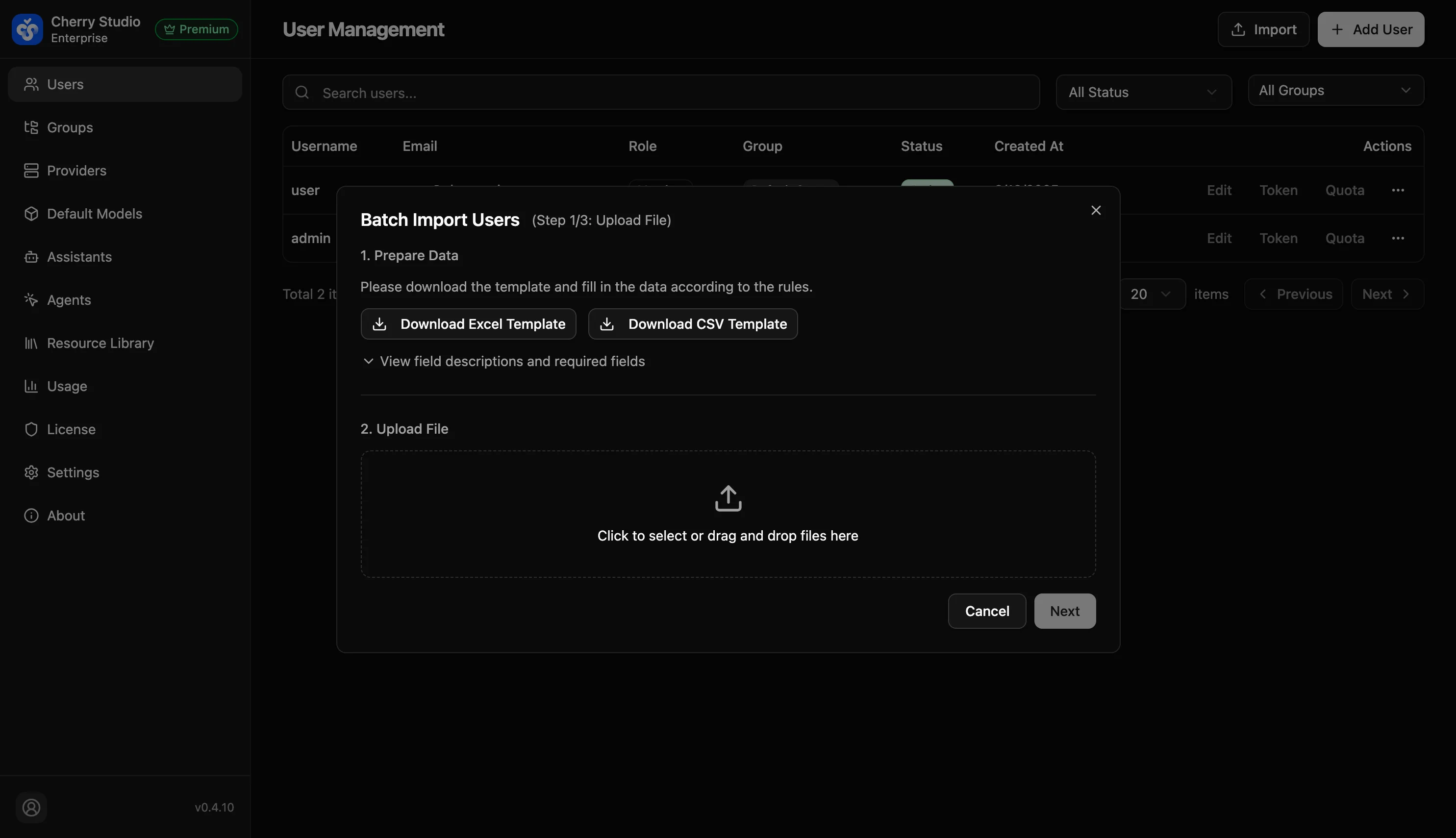
- Click Download Excel Template or Download CSV Template to get the standard template.
- Fill in user data following the template format.
- Drag and drop the completed file to the upload area, or click to select.
- Click Next to proceed to data preview.
Field Reference
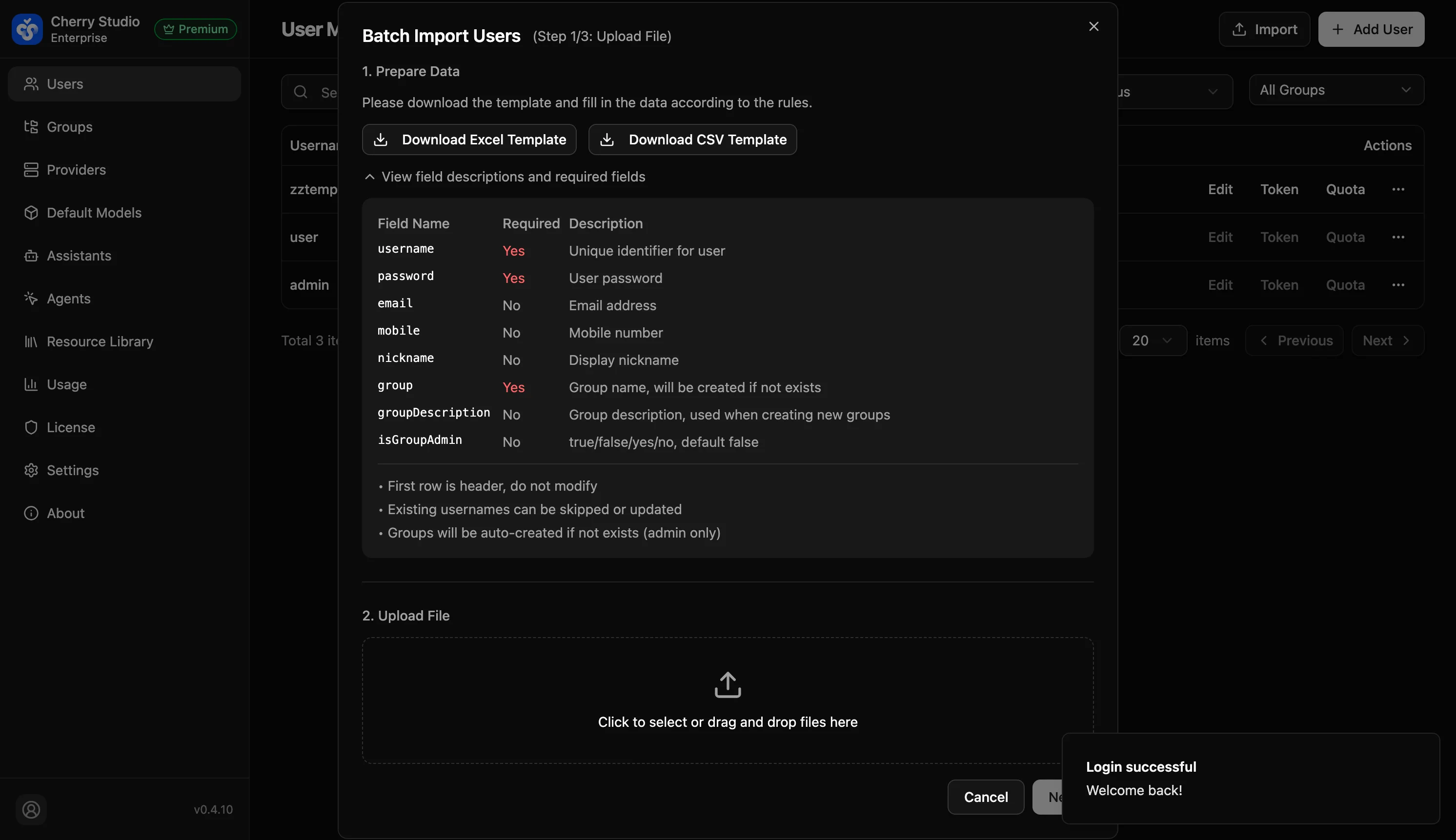
| Field | Required | Description |
|---|---|---|
username | Yes | Unique user identifier. Must be unique across the system. |
password | Yes | Initial user password. |
email | No | Email address. |
mobile | No | Phone number. |
nickname | No | Display name. |
group | Yes | Group name. If the group doesn't exist, it will be created automatically. |
groupDescription | No | Group description. Used only when the group is auto-created. |
isGroupAdmin | No | Whether the user is a group admin. Accepts true/false or 是/否. Default: false. |
Step 2: Data Preview
After parsing, the system displays a preview table for verification. Format errors or missing required fields are highlighted.
Step 3: Execute Import
Click execute to batch-create users and groups. A results summary (successful, skipped, failed counts) is shown upon completion.
Important notes:
- Do not modify the header row in the template.
- Existing usernames can be skipped or updated.
- Non-existent groups are auto-created (admin permission required).
- Test with a small dataset first before bulk importing.