Member Invitation
Quickly add team members via invite links — invitees click the link to register and join the organization.
Overview
Member invitation lets admins generate a unique invite link. Team members click the link, register on their own, and automatically join the organization — no need for admins to create accounts one by one.
Use cases:
- Rapidly scaling a team
- Self-service onboarding for new employees
- Adding cross-department collaborators
Generate an Invite Link
Steps
- Go to Admin Console → User Management
- Click the "Invite Members" button
- Configure invite options (see parameters below)
- Copy the generated invite link
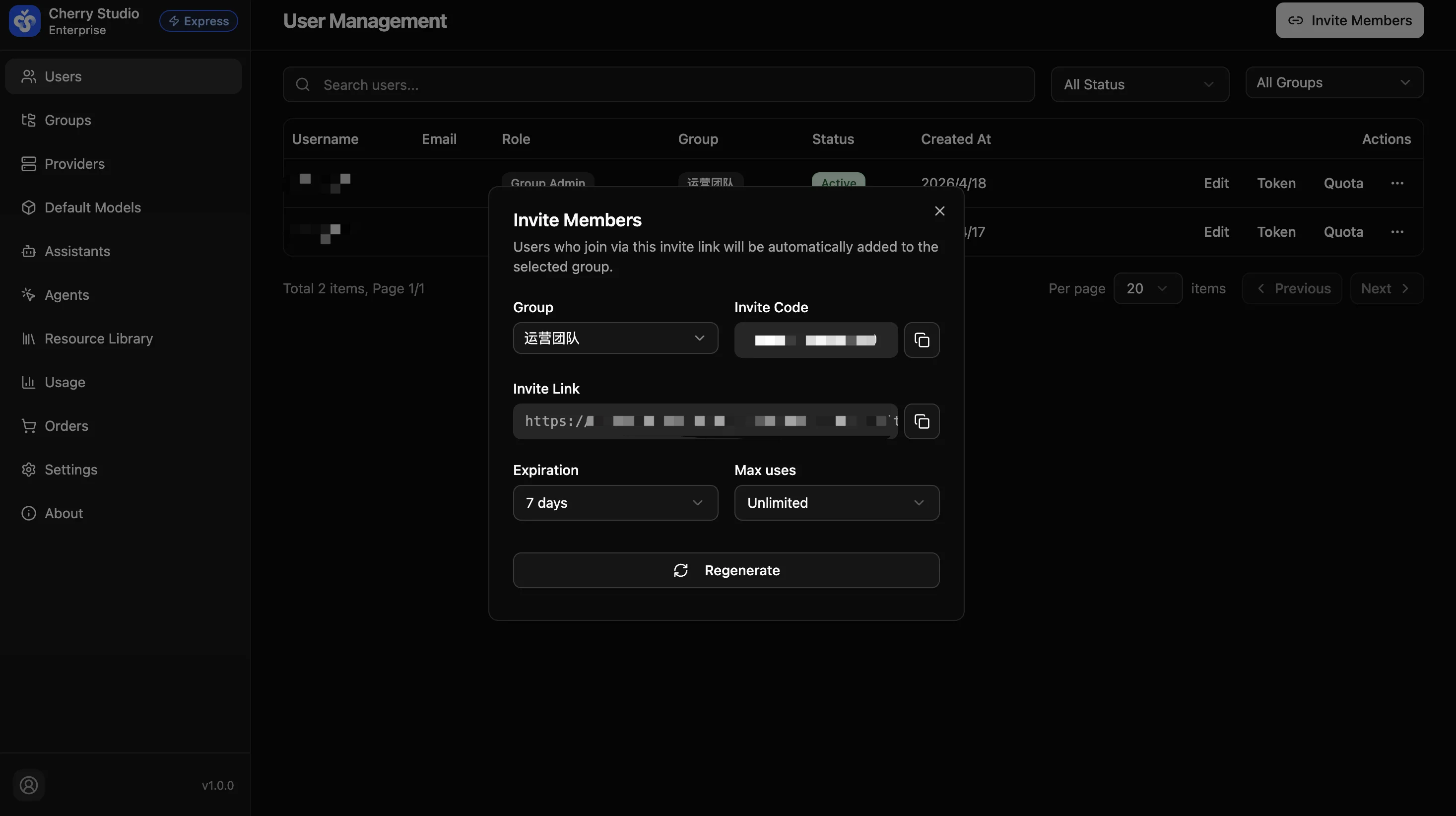
Invite Configuration
| Parameter | Description |
|---|---|
| Target Group | The group invitees will join, which determines their accessible models and assistants |
| Expiration | How long the link remains valid (e.g., 7 days, 30 days, or never) |
| Max Uses | Maximum number of times the link can be used (e.g., unlimited, 10, 50) |
Manage Invite Links
Invite links are managed within group settings. You can create dedicated invite links for each group and control their expiration and usage limits.
See Invite Links for details.
Invitee Registration Flow
When an invitee receives the link:
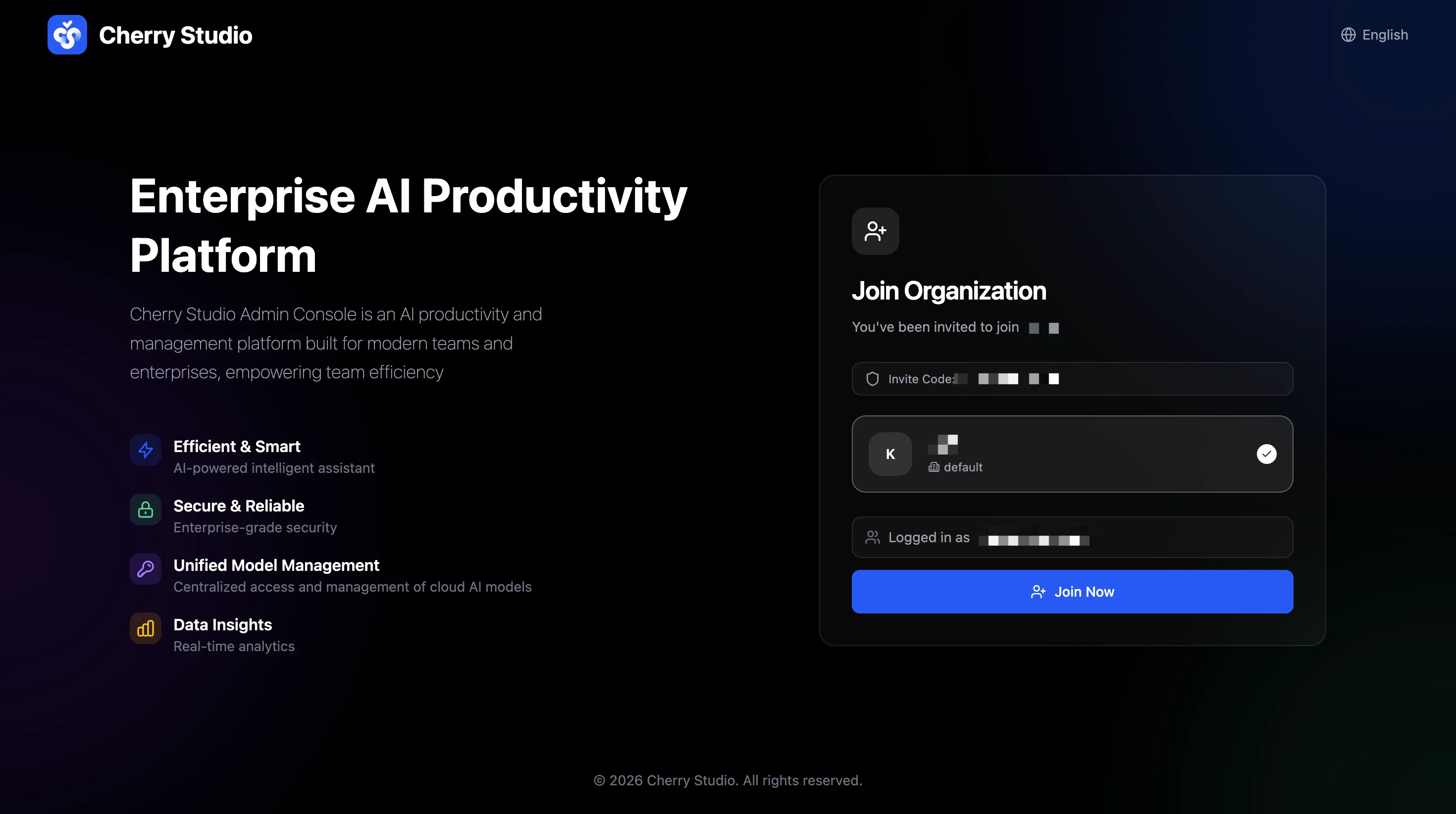
- Click the invite link to open the "Join Organization" page
- The page automatically shows the invite code and the group they will join
- Confirm the details and click "Join Now" to complete
- Download the client and sign in to start using
Invitees must register an account and sign in before they can join the organization via the invite link. For client login instructions, see Client.
Best Practices
- Keep invite links secure — avoid sharing with unintended recipients
- Set reasonable expiration and usage limits
- After registration, admins can still edit the invitee's group and permissions in User Management
- To revoke access for a registered user, set their status to "Inactive" in User Management