Quota Management
Set daily, weekly, monthly, and total API usage limits for users and groups to control AI service costs and prevent resource overuse.
Quota Hierarchy
Cherry Studio uses a two-level quota system:
- Group-level quotas: Configured in group settings, serving as the default limit for all group members.
- User-level quotas: Per-user custom quotas that override group defaults. Leave empty to inherit the group's default.
Setting User Quotas
- Go to the User Management page.
- Click the Quota button in the target user's action column.
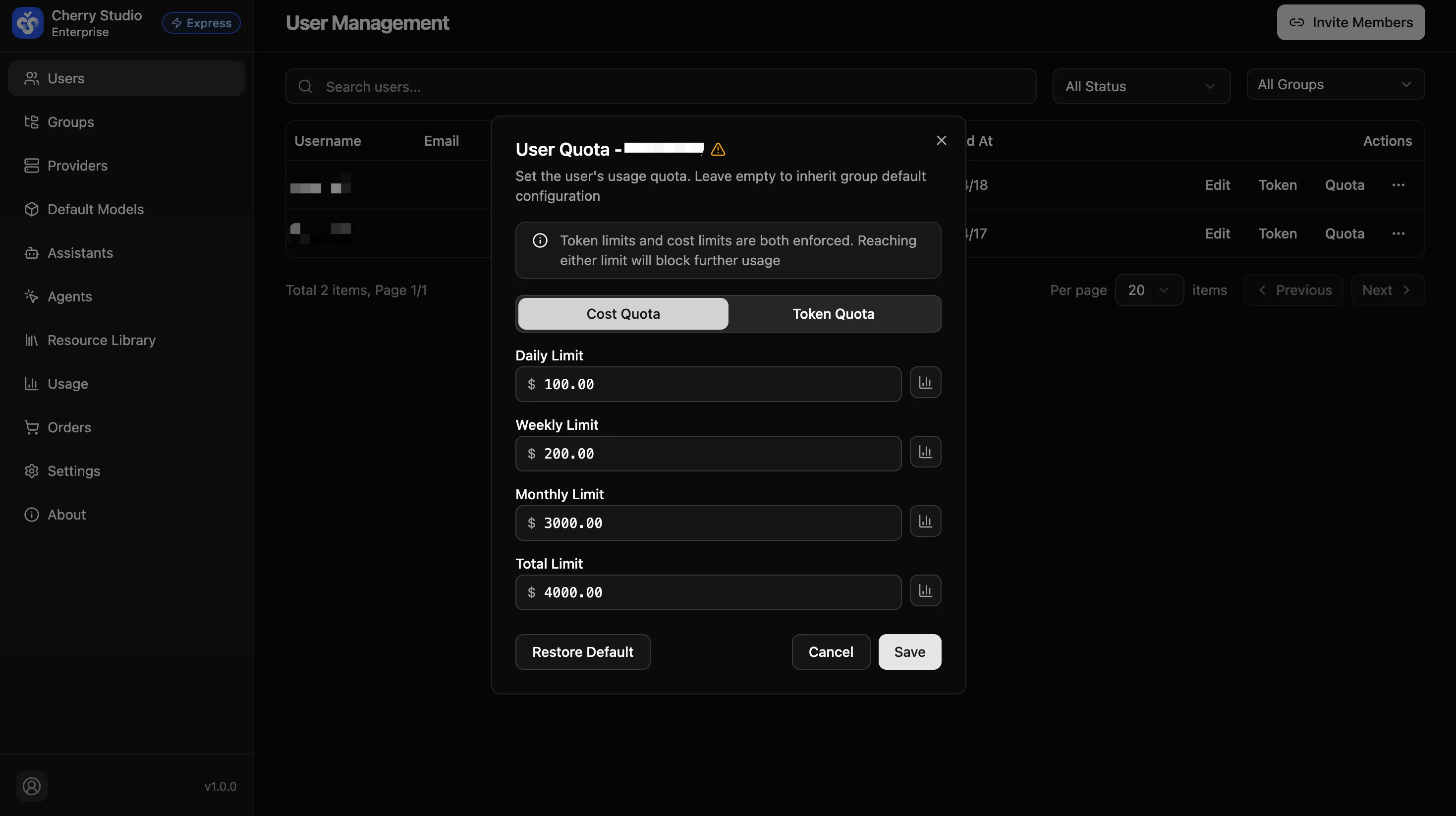
Switch between Cost Quota and Token Quota via the tabs at the top of the dialog to set limits by cost or token consumption.
- Set limit values for each dimension:
| Dimension | Description |
|---|---|
| Daily | Maximum usage allowed in the past 24 hours. Auto-resets daily. |
| Weekly | Maximum usage allowed in the past 7 days. Auto-resets weekly. |
| Monthly | Maximum usage allowed in the past 30 days. Auto-resets monthly. |
| Total | Cumulative total usage cap. Does not auto-reset; requires manual reset. |
Tip: Leave a field empty to inherit the group default. If the group has no limit either, the dimension is unrestricted. Click Restore Default at the bottom-left of the dialog to clear all custom limits for this user in one step and revert to inheriting the group default.
Viewing Usage and Resetting
Click the expand button next to each quota dimension to view usage details:
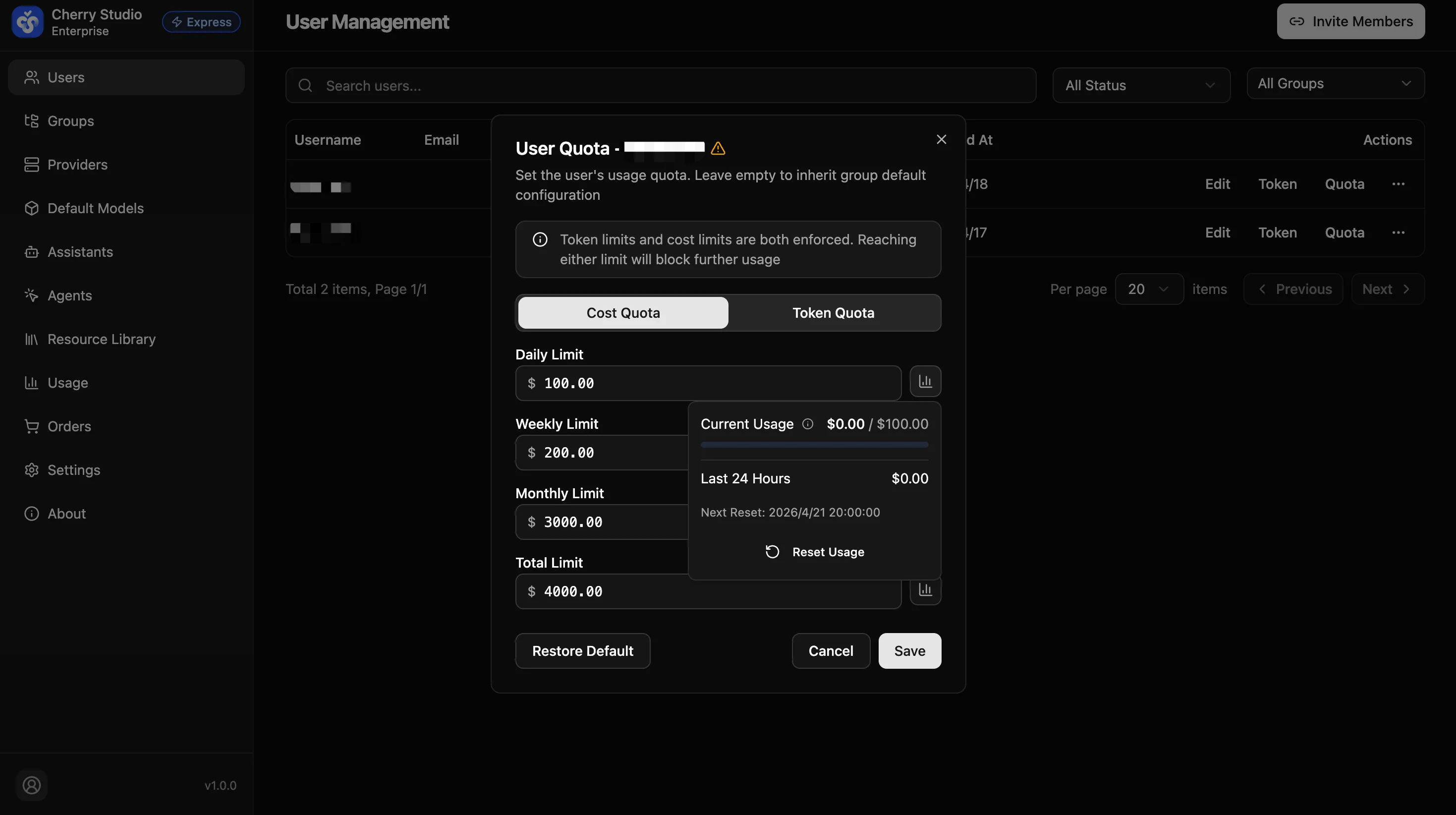
- Current Usage: Displayed as
used / limitshowing the current period's consumption against the cap. - Last 24 Hours: Amount consumed in the last 24 hours.
- Next Reset: When the quota will auto-reset.
- Reset Usage button: Manually reset the current period's usage to zero.
- Click Save when done.
Note: When a user reaches their quota, subsequent API calls will be rejected until the quota resets or an admin adjusts it.
Temporary Quota Adjustment
The added amount expires when the period resets and does not modify the original quota configuration.
When a user has an urgent need that exceeds their current quota (for example, the monthly limit is reached but a batch task still needs to run), you can use Temporary Quota to inject extra allowance into that user's current period without modifying their regular quota settings.
Adding Temporary Quota
- Go to User Management and click Quota in the target user's action column to open the user quota dialog.
- Switch to the Cost Quota or Token Quota tab.
- Next to the Daily Limit / Weekly Limit / Monthly Limit field (beside the chart button), click the + button.
- In the Add temporary quota — Daily/Weekly/Monthly popover, enter the amount to add (positive integer; the unit matches the active tab — tokens or currency), then click Apply.
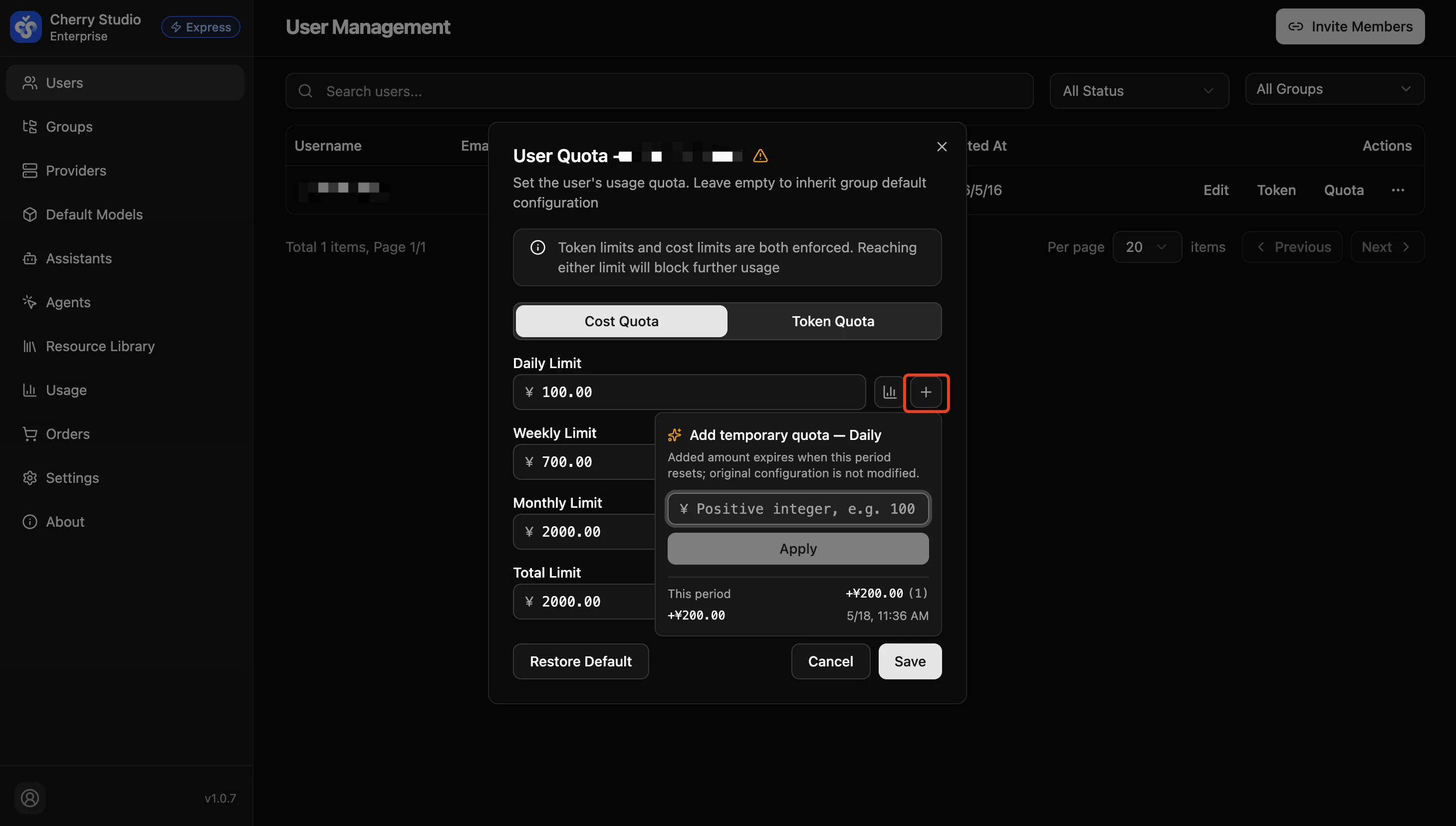
The added amount applies only to the current period. It clears together with the period's usage at the next auto-reset and never changes the user's regular quota value. The Total Limit field does not support temporary adjustments.
Viewing Adjustment History
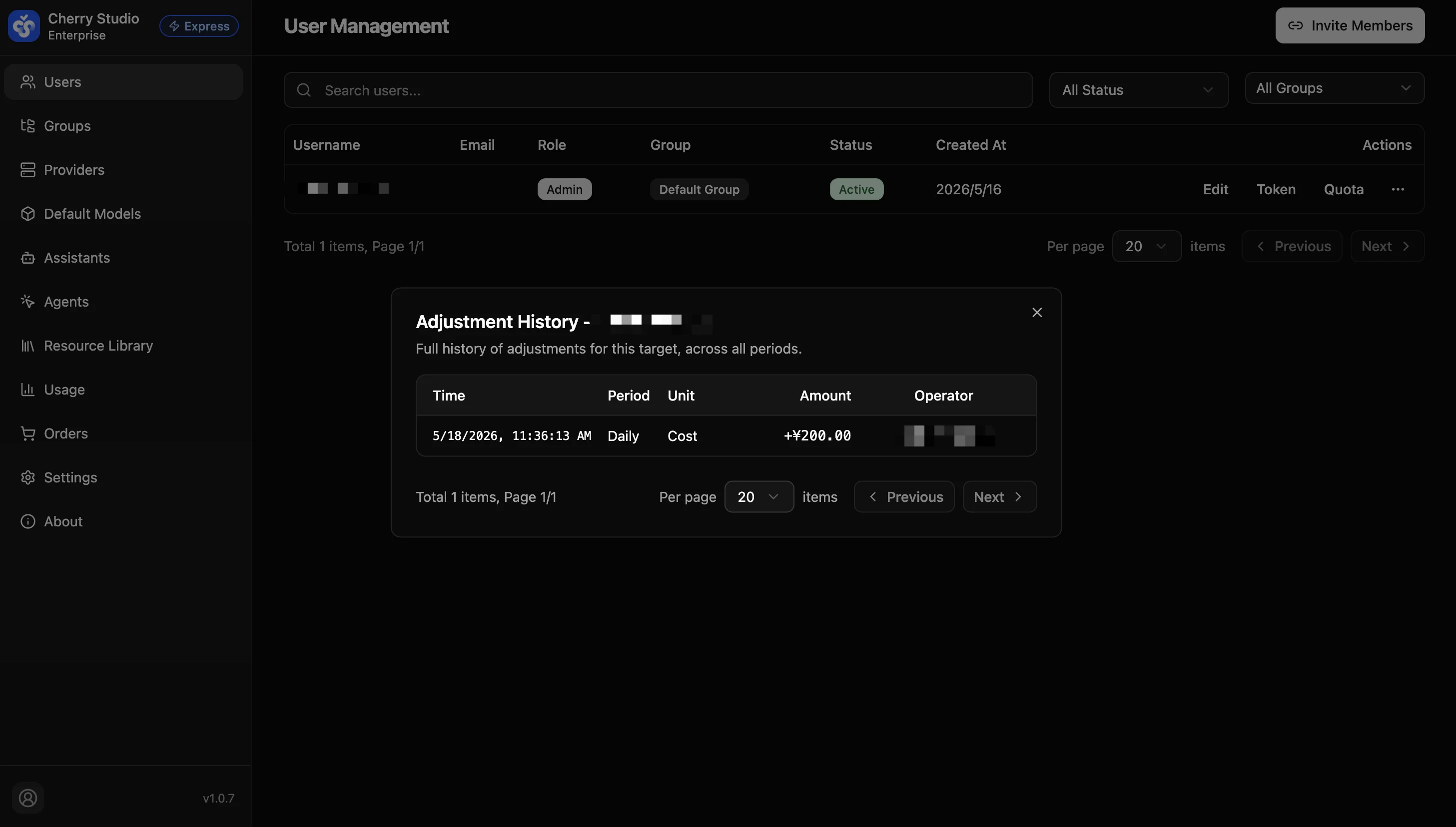
On the User Management page, click the ⋯ action menu next to the target user and choose Adjustment History.
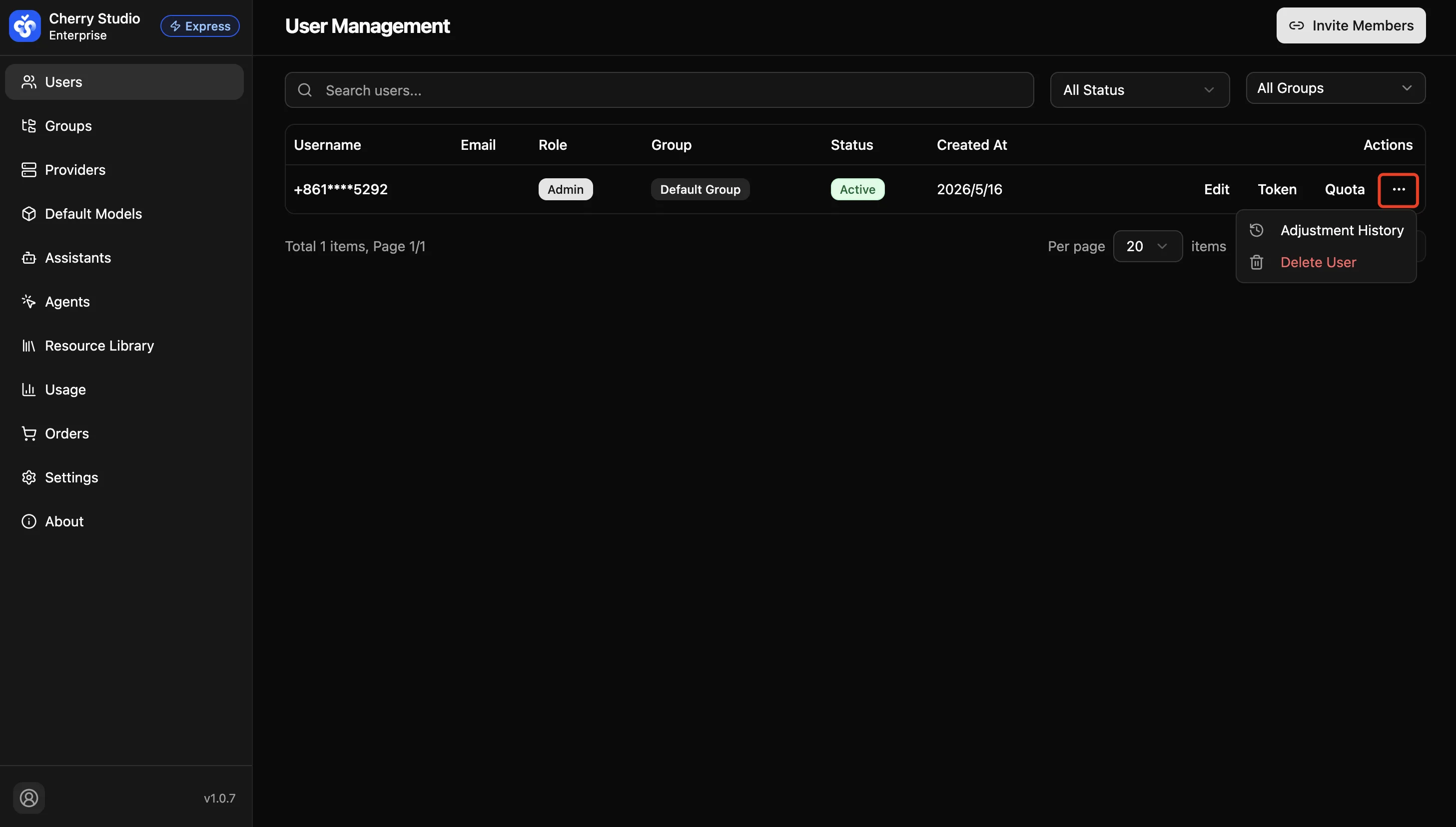
The dialog lists the user's full adjustment history across all periods in reverse chronological order:
| Column | Description |
|---|---|
| Time | Timestamp of the adjustment |
| Period | Period the adjustment applies to (Daily / Weekly / Monthly) |
| Unit | Unit of the adjustment (Cost / Token) |
| Amount | Value added in this adjustment |
| Operator | Admin account that performed the adjustment |